
Last updated: November 19, 2026
Quick Answer: A true same-signature, same-package APK update usually keeps app data, but there is no universal guarantee; checking the package name, signing certificate, and release notes is the safest way to estimate the outcome for How to Check Whether an APK Will Keep Your App Data After an Update. This guide shows you how to check that before you install it. The steps below will help you judge what is likely to stay intact, what can still break, and when a backup is the only sane move.
Key takeaways
- The biggest clue is not the APK name. It’s whether the package name and signing key match the installed app.
- If the APK is built for the same app but has a new version code, that is usually an update path, not a reinstall.
- Local settings and offline files often survive. Account data stored on a server usually survives too, even if the app itself is reset.
- A quick check in the APK’s manifest, signature, and release notes can save you from losing app storage.
- If the app stores data only on the phone, assume there is risk and make a backup before you try the new APK.
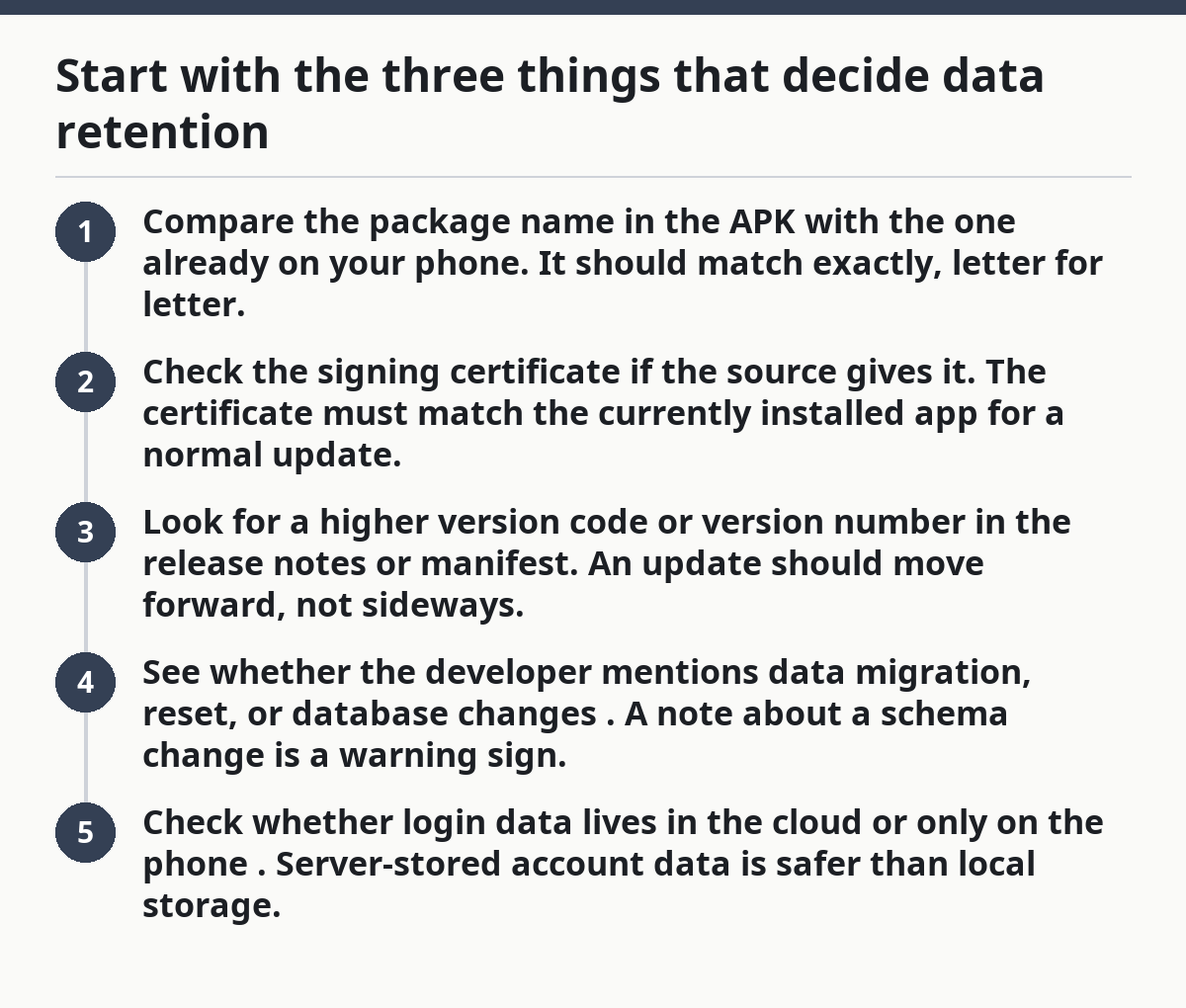
Start with the three things that decide data retention
Picture this: you’re staring at a new APK and you want one answer before you tap Install. You do not need to guess; you need to check the package name, signing certificate, and version path. Those three details tell you far more than the filename ever will.
Since Android can treat one file as an upgrade and another as a separate app, start with identity rather than appearance. A same-signature update can usually keep app data; a different signature can block the install or force a fresh app profile. That difference matters most when the app stores local settings, saved files, or cached work in app storage.
Use this first-pass checklist:
- Compare the package name in the APK with the one already on your phone. It should match exactly, letter for letter.
- Check the signing certificate if the source gives it. The certificate must match the currently installed app for a normal update.
- Look for a higher version code or version number in the release notes or manifest. An update should move forward, not sideways.
- See whether the developer mentions data migration, reset, or database changes. A note about a schema change is a warning sign.
- Check whether login data lives in the cloud or only on the phone. Server-stored account data is safer than local storage.
If you only do one thing, do this: verify the signature. Android uses app signing to decide whether one APK can replace another. Different key? Not an ordinary update. Same key? Much better odds that android app data stays in place.
The Android Developers documentation on app signing explains why the key matters, and the Android package manager enforces it during install.
How do you check an APK before you install it?
You check an APK before you install it by inspecting its manifest, version, and signature in under 10 minutes. That is the cleanest way to predict whether app data, app storage, and local settings will carry over.
The truth is, many people look only at the version number and miss the real problem. A file named app_v2.apk can still break storage if it was signed with a different certificate or built from a different package. That is why the inspection has to go deeper than the file name.
Use a tool that can show APK details, such as an APK analyzer, Android Studio’s APK Analyzer, or a signature-checking app. Then look for these fields:
- Package name: must match the installed app.
- Version code / version name: should increase, not jump to a different app branch.
- Signing certificate: should be the same as the current install.
- Permissions: if the app suddenly asks for broad storage or media access, expect storage behavior to change.
- Min SDK / target SDK: a major jump can change how data is stored, especially on newer Android versions.
A simple rule helps: if the APK looks like a fork, a mod, or a repack, treat it as unsafe for data retention, and consult a qualified developer or Android support professional if the app matters. Same app name is not enough. Same icon is not enough. The signature and package are what count.
Helpful references:
- Android Developers on app signing: https://developer.android.com/studio/publish/app-signing
- Android Developers on package management and app installs: https://source.android.com/docs/core/architecture/ota/package-manager
- Android Developers on package visibility and install behavior: https://developer.android.com/training/package-visibility
- OWASP Mobile App Security Verification Standard: https://mas.owasp.org/
Step-by-step: verify the APK will keep your app data
You can verify likely data retention by checking the installed app, the APK metadata, and the developer’s release notes in that order. Do the checks below before you install anything that matters.
- Open Settings > Apps and tap the app you already have. Note the app name, package behavior, and whether it has local storage such as downloads, drafts, or offline files.
- Find the APK’s version name and version code. A normal update should move forward from the installed build, not replace it with a different branch.
- Check the package name in the APK manifest. It must match the installed app exactly, including dots and case-sensitive text.
- Verify the signing certificate. If the certificate fingerprint does not match the current app, Android may reject the install or treat it as a different app. If you are unsure, consult a qualified Android developer or support professional before proceeding.
- Read the changelog for words like migration, database, reset, or new storage format. Those words mean the developer changed how data is handled.
- Check whether the app uses an account login. If your data syncs to a server, the local app can be wiped and your main content may still come back after sign-in.
- Back up any offline files before you proceed. Copy important exports, media, and app folders if the app allows it, because no APK check can promise perfect retention.
A few results are easy to read. If the package name and signature match, you’re usually looking at an update path, not a fresh install. If the package name matches but the signature does not, stop there. Not even close.
The same logic applies to app storage types. Files in internal storage, databases, shared preferences, and cache can behave differently during an update. Cache is expendable. Shared preferences may survive. Databases often survive a normal upgrade, but not a reinstall with a different signature or package.
What parts of app data usually survive an APK update?
Most app data survives a same-signature update, but not every kind of data is equally safe. Local settings, login tokens, downloaded content, and saved preferences are the first things people care about, and they usually stay put when the app is updated in place.
Picture this: you use an app every day, and the part you fear losing is not the login screen — it’s the offline notes, saved drafts, or custom filters. Those live in different places, and that changes the risk.
A practical breakdown helps:
- In-app accounts: Often safe if the service uses server sync. If the app only keeps a local session token, the token may need to be refreshed.
- Local settings: Usually safe in a normal update. They can break if the developer changes the settings schema.
- App storage: Internal app files often survive same-package updates. External files can be deleted by the user, the OS, or a cleanup tool.
- Cache: This is the least stable. Android and the app can clear it anytime.
- Offline content: Usually survives if the app keeps the same data path and migration logic.
A developer can still change the data model without changing the package. That is where trouble starts. If the release notes mention a database migration, the app may convert old files on first launch. If that process fails, you can end up with empty screens or missing local records.
That is why “same app” is not the full test. Same app, same signature, same package, and a compatible data format are the full test. Miss one, and the result changes.
What can make an APK update wipe your data?
An APK update can wipe your data when Android treats it as a different app or when the new build cannot read the old data format. That is the ugly part. Most people expect one button to mean one outcome, but app data lives under a few different rules.
The usual causes are simple:
- Different signing key: Android blocks or separates the install path.
- Different package name: The system sees a different app.
- Downgrade disguised as an update: Older code may not understand newer data.
- Storage migration failure: The app tries to move data and fails halfway through.
- User clears data during troubleshooting: A manual reset erases app storage immediately.
- Backup restore conflict: Restoring old data into a new build can overwrite newer settings.
Now, you might be wondering about sideloaded APKs from the same developer. They can still fail if the developer rotated keys, split the app into a new package, or republished a build from a different channel. The file source matters less than the technical identity of the app.
A bad sign is a build that asks you to uninstall the old app first. That often means the signature changed or the package changed. If the instructions say to remove the old version, expect data risk. Even if the new app opens, the old local database may be gone.
The safest response is usually boring but effective: back up the app’s export files, confirm the release notes, and compare the signature before you install. That is the only way to turn a guess into a check.
Back up before you update if the app stores anything local
You should back up before you update when the app stores drafts, notes, downloads, or account tokens only on the phone. That backup does not have to be fancy; it just has to exist before the install.
Picture this: you’ve already found the right APK, but the app contains work you cannot re-create in 5 minutes. That is the moment to stop and copy the data you can reach. If the app has an export button, use it. If it keeps files in a visible folder, copy those files. If it syncs to an account, make sure the sync is complete first.
Use this order:
- Export inside the app if there is an export or backup option.
- Wait for sync to finish if the app stores data in the cloud.
- Copy visible files from Downloads, Documents, Pictures, or the app’s export folder.
- Take screenshots of settings if the app has custom setup you may need to rebuild.
- Only then install the APK.
A backup is not the same thing as app data retention. A safe update keeps the data where it is. A backup gives you a way back if the update goes wrong. That difference matters when the app has no account login and no export button.
The better the app leans on a server account, the less likely you are to lose the important part. The more it relies on local storage, the more you should protect it first.
Where the line is between safe update and fresh install
A safe update keeps the same app identity; a fresh install does not. That is the line that matters, and it is the one generic advice usually skips.
If you remember only one comparison, make it this:
- Safe update: same package name, same signing certificate, newer version code, compatible data format.
- Risky install: different package name, different certificate, downgrade, or a build that tells you to uninstall first.
That distinction is why two APKs that look similar can behave very differently. One preserves local settings and app storage. The other starts over or refuses to install at all.
A few signs point to a safe path:
- The release comes from the same developer channel.
- The changelog mentions bug fixes, UI changes, or performance updates.
- The app does not ask you to clear data before installing.
- The version moves forward in the same app line.
A few signs point the other way:
- The APK is labeled as a mod, clone, or repack.
- The developer changed the app name or package.
- The changelog mentions a database reset.
- The install instructions mention uninstalling the current app.
That is the honest trade-off against the obvious alternative. If you want maximum certainty, the cost is a backup and a few minutes of inspection. If you skip the check, you may save time now and lose local data later.
For a broader look at version behavior, the hub page on APK version, compatibility, and updates can help you connect this check to the rest of the update flow.
Do APK updates delete app data?
No, not when the APK is a true same-signature update for the same package. In that case, Android normally keeps the app’s local data, settings, and installed state. Data loss becomes much more likely if the package name changes, the signing key changes, or the update is really a reinstall in disguise.
What can cause app data to be lost during an update?
A signature mismatch, a package-name change, a downgrade, or a failed data migration can cause loss. Local-only app storage is at the highest risk because there is no server copy to fall back on. Clearing data manually during troubleshooting also wipes the app immediately.
How do I protect app data before sideloading a new version?
Export what the app lets you export, finish syncing any account data, and copy visible files before you install the APK. If the app has offline drafts or local records, treat them as disposable only after you have a backup. A screenshot of settings can also save time if you need to rebuild the app later.
Drafted with AI; not yet reviewed by a person.
