
Last updated: November 19, 2026
Quick answer: a clean APK file management setup usually takes 10 minutes to organize, and it should end with one labeled installer copy, not a pile of duplicates. APK file management on Android and desktop means knowing where APKs come from, where they live, how to verify them, and how to install, back up, move, or remove them without breaking your phone. The right answer is usually to treat APKs like software installers, not like regular downloads, and if you are unsure, consult a professional or the app publisher’s guidance. The steps below show what to keep, what to delete, and what changes on a phone versus a Windows, Mac, or Linux desktop.
Key Takeaways
- APKs are install files for Android apps, and the dangerous part is not the file itself but where it came from.
- On Android, the safe path is usually to store APKs in one folder, scan before opening, and delete old installers after app setup.
- On desktop, the main job is sorting, backing up, and verifying APKs before you move them to a phone or emulator.
- Split packages, app bundles, and mismatched Android versions are the usual reasons installs fail.
- A practical workflow is to verify the source, keep versions labeled, install once, then archive or remove the installer.
What an APK actually is, and why file management matters
An APK is the install package Android uses for apps, and file management is the difference between a clean install and a messy pile of duplicates. If you keep random APKs in Downloads, you lose track of which version is safe, which one is old, and which one came from a site you no longer trust. A file with .apk at the end is not automatically bad, but it is never something to click casually.
Picture this: you’re on an Android phone with three nearly identical files, one named app.apk, one named app-2.apk, and one dated six months ago. That’s where mistakes start, because the filename no longer tells you which build you meant to keep. The fix is boring, and that’s the point.
Use this rule set:
- Keep APKs in a dedicated folder, not in Downloads forever.
- Rename files with the app name and version if the source does not do it for you.
- Delete installers after the app is installed unless you need them for rollback.
- Never trust an APK just because a friend sent it through chat.
- Check the file size and date against the source page if one exists.
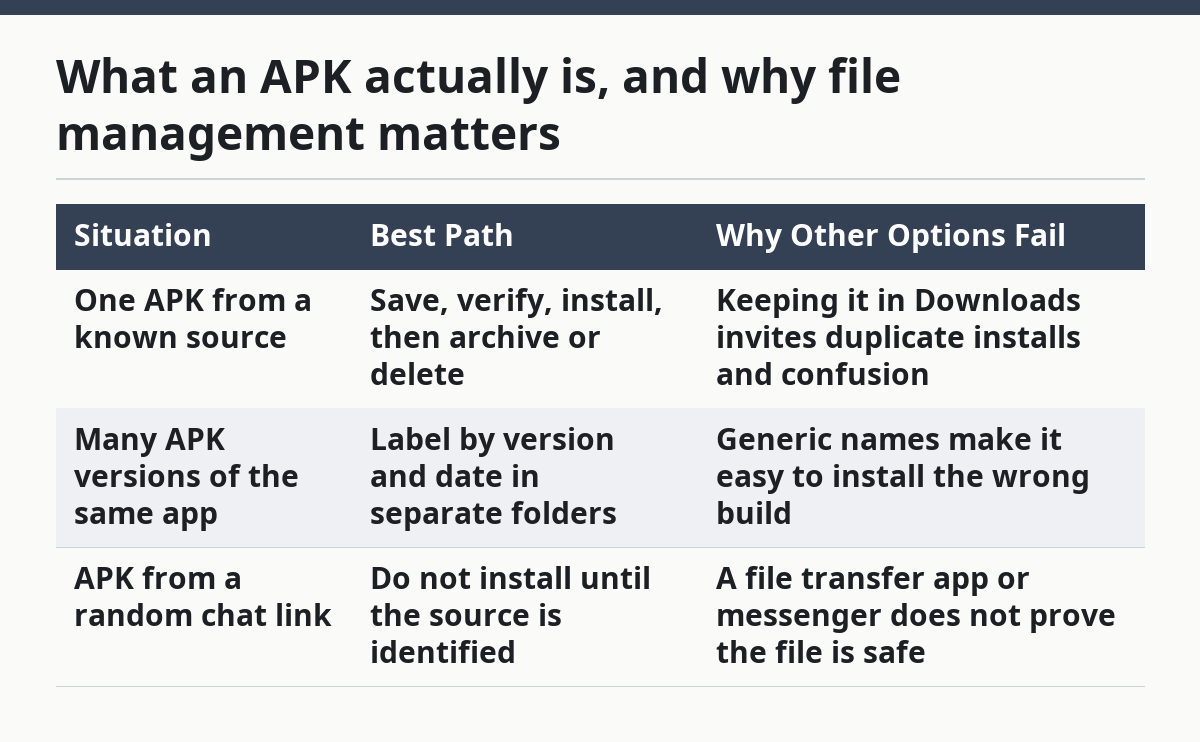
| Situation | Best Path | Why Other Options Fail |
|---|---|---|
| One APK from a known source | Save, verify, install, then archive or delete | Keeping it in Downloads invites duplicate installs and confusion |
| Many APK versions of the same app | Label by version and date in separate folders | Generic names make it easy to install the wrong build |
| APK from a random chat link | Do not install until the source is identified | A file transfer app or messenger does not prove the file is safe |
If you only need one habit, make it this: keep the installer for 24 hours, then move it or delete it once the app works. Quick check: if your APKs sit in Downloads with no labels, this section is about you.
Where should I store APK files on Android?
Store APK files in one dedicated folder on internal storage, then clean it out often. That gives you one place to check, one place to back up, and one place to empty when you’re done. If your phone uses scoped storage restrictions or a file manager with limited access on Android 11 and later, that folder should still be easy to reach from your file app.
Picture this: you downloaded a file from your browser, your messenger app, and your email, and now you need the one that matches the latest app build. A single folder such as Downloads/APKs or Documents/APKs keeps the trail obvious. On a phone, obvious beats clever every time.
Use this Android path:
- Open your file manager, such as Files by Google or the built-in Files app.
- Create one folder called
APKsorAndroid Installers. - Move every APK out of the browser’s download list into that folder.
- Rename each file with the app name and version if needed.
- Open only the file you actually want to install.
- After installation, archive the installer to external storage or delete it.
There’s one catch. If you rely on USB debugging, ADB, or sideloading from a computer, then the storage location on the phone matters less than the way you transfer the file. In that case, the clean move is to keep the APK on the desktop first, verify it there, then copy it to the phone only when you’re ready. According to Android’s app install guidance, sideloading still depends on the app you choose to open the file and the permissions you grant it, so if the setup is unusual, it is worth checking with a professional or the device vendor’s documentation. (Source: Android Help)
What to avoid:
- Leaving APKs mixed with photos or documents
- Storing installers in chat app folders
- Keeping multiple copies with the same name
- Opening APKs before you know which app they install
On the flip side, if you use the same 3 or 4 apps often, a dedicated folder saves time during reinstall or device migration. Quick check: if you’re ever hunting through 40 unrelated files just to find one installer, your storage setup is the problem.
How do I manage APK files on a Windows, Mac, or Linux desktop?
Manage APK files on desktop by treating them as software inventory, not as casual downloads, and if you are unsure about your workflow, consult a professional or follow the source publisher’s instructions. The desktop is where sorting, verification, backup, and labeling are easiest, so it should be the cleanest place in the whole workflow. If you use Windows 11, macOS, or a modern Linux desktop, the browser’s Downloads folder can work as a temporary stop, but it is rarely the best long-term home.
Picture this: you’ve got five APKs for the same app, a backup drive, and a phone that needs a reinstall before Monday. The desktop is where you sort the mess into something usable. It can be the best place to name files clearly, check hashes when a source offers them, and hold copies for offline backup.
Use this desktop workflow:
- Create a top-level folder such as
Android_APKs. - Inside it, make subfolders by app name.
- Save the source page or release notes in the same folder if you’ll need them later.
- Rename each file with version and date, such as
appname_5.4.1_2026-11-03.apk. - Keep one untouched copy as your archive.
- Put the version you plan to install in a separate
Ready to installfolder. - Remove outdated versions once you no longer need rollback.
| Situation | Best Path | Why Other Options Fail |
|---|---|---|
| Desktop as your main stash | Use folders by app and version | One giant download pile turns into duplicates fast |
| Multiple device installs | Keep a clean archive and a working copy | Re-downloading every time wastes time and creates version drift |
| Long-term storage | Back up to external storage or cloud | Local-only storage dies with the machine or disk |
The truth is, desktop management is mostly about discipline. If you want a safer process, keep a text file or note with the source URL, version, and date of each APK. That matters more than fancy tools. Quick check: if your desktop has appfinal.apk, appfinal2.apk, and newnew.apk, you need a naming rule more than you need another app.
How do I verify an APK before I install it?
Verify an APK by checking the source, the signature, and the package details before you tap install. If the file came from a developer site, a trusted repository, or a known store export, that is one thing. If it came from a mirror you do not recognize, the answer changes fast.
Picture this: you’re about to sideload an app because the Play Store version is not what you need. The question is not “Can this install?” It’s “Is this the file I think it is?” That’s where checksums, package names, and signing certificates matter.
Use this verification path:
- Compare the filename to the version listed on the source page.
- Check the package name if the source provides it.
- Compare the file size against the listed release if available.
- If a SHA-256 or similar hash is published, verify it before you install.
- Open the Android install prompt and read the app name carefully.
- Cancel if the installer asks for strange permissions that do not fit the app.
Tools that help on desktop:
sha256sumon LinuxCertUtil -hashfileon Windowsshasum -a 256on macOS- APK Analyzer in Android Studio for inspecting package contents
Here’s the catch: a valid hash only proves the file matches the publisher’s hash, not that the publisher is trustworthy. If the source page is shady, a matching checksum does not fix that. The better path is to use sources with a clear release page and known package name, such as the developer’s own site or a well-known repository that publishes hashes. NIST’s hash documentation explains why hashes verify integrity, not trust. NIST
Do not skip the install screen itself. Android still shows the app name and requested access before the final tap, and that screen is your last chance to stop. Quick check: if you never compare hashes or package names, you are installing on trust alone.
How do I install, move, or back up APKs without making a mess?
Install, move, or back up APKs by separating three jobs that people often mix together: the installer file, the app data, and the app itself. An APK is not the same thing as the app’s settings or login state, so copying the file alone does not preserve everything. That distinction matters on Android 12, Android 13, and newer phones even more than on older devices.
Picture this: you want to move an app to a new phone, save a copy for later, and keep your old version just in case. Those are three different tasks. The clean answer is to archive the APK, back up the app’s data only if you have a proper backup method, and install the file on the new device when needed.
Use this 6-step path:
- Save the APK in a known folder on desktop or Android.
- Confirm it is the version you actually want.
- If you are transferring it, move it by USB cable, cloud drive, or local network share.
- On the target device, enable install permission for the file manager or browser that will open it.
- Install the APK and confirm the app launches.
- Remove the installer from the device if you do not need rollback.
Backing up is where people overreach. If you only back up the APK file, you can reinstall the app later, but you do not keep logins, saved games, or app-specific data unless the app or your backup tool handles that separately. File backup and app backup are not the same thing.
Better tools for different jobs:
- For transfer: USB cable, nearby share, or a cloud folder
- For archive: external SSD, flash drive, or a versioned desktop folder
- For inspection: APK Analyzer, hash tools, or a file manager with details view
On the flip side, if you are backing up enterprise apps, test builds, or older versions for rollback, keep the installer and the release notes together. That way you know why the file exists at all. Quick check: if you thought copying an APK also copies your account data, this is the section you needed most.
When does standard APK advice break down?
Standard advice breaks down when the file is a split APK, an app bundle export, a beta build, or a stale version that won’t install on your current Android release. In those cases, simple “tap the file” advice fails, and you need a different path.
Picture this: you found an APK that looks right, but Android refuses to install it, or the app opens and crashes right away. That usually means the problem is not your phone storage. It is the package format, the target SDK, or the way the app was built.
| Situation | What Changes | What to Do Instead |
|---|---|---|
| Split APK set | One file is not enough | Use a split installer tool such as SAI or install from the original source package |
| Android version mismatch | The app targets a newer or older system | Find a build meant for your Android version |
| Corrupt download | The file is incomplete | Re-download from the source and compare size or hash |
| Beta or test build | Install rules can be stricter | Keep it in a separate folder and avoid mixing with stable releases |
| Old rollback APK | The app may reject older data | Remove app data only if you understand the consequence |
Split APKs are the biggest trap. A lot of people see .apk and think every Android installer is one file. It is not. Some apps arrive as multiple pieces, and a single file may fail because the other parts are missing. Tools like SAI, APKMirror Installer, or the original package source handle that better than a plain file tap.
A second trap is version drift. If you keep an APK from last year, it may still install, but the app can fail if it needs a newer Android API level or a different processor architecture. That is why the source page, version note, and device model matter. Quick check: if your APK won’t install even though the file opens, you may not have a bad file — you may have the wrong package type.
What is the safest cleanup routine after you install an APK?
A safe cleanup routine is to delete or archive the installer right after you confirm the app works. Old APKs pile up fast, and the bigger the pile, the more likely you’ll reinstall the wrong build later. If the file no longer serves a purpose, it should not stay on your phone or desktop.
Picture this: the app is installed, the icon is on your home screen, and the APK is still sitting in Downloads. That’s normal for about five minutes. After that, it becomes clutter and risk. If you use a cloud backup, the same rule still applies: archive intentionally, don’t hoard by accident.
Use this cleanup checklist:
- Open the app once and confirm it runs.
- Check that the version is the one you meant to install.
- Move the APK to an archive folder only if you need rollback.
- Delete duplicate copies from Downloads and chat folders.
- Empty trash or recycle bin if the file is sensitive.
- Review the archive every few months and remove files you no longer need.
There are two good reasons to keep an APK. One is rollback, where you may need a known-good version after a bad update. The other is offline reinstall, which matters if your connection is limited or the app source disappears. Outside those cases, keeping installers forever is just digital clutter.
A better archive is small and labeled:
- App name
- Version
- Date saved
- Source
- Reason kept
If you cannot answer why a file stays on your device, it should go. Quick check: if your APK folder has files you don’t recognize anymore, your archive has become a junk drawer.
FAQ
Can I move an APK from Android to desktop and install it there?
No, not as a normal desktop app. An APK is made for Android, so on a desktop it is usually something you store, inspect, or use with an Android emulator. If you need the app on desktop, look for a native Windows, macOS, or Linux version instead.
Is it safe to keep APK files in Google Drive or Dropbox?
Yes, if you use it as an archive and the file came from a source you trust. Cloud storage helps with backup and transfer, but it does not verify the file for you. Keep the folder labeled, and avoid mixing installers with unrelated documents.
Why won’t an APK install on my phone?
The most common reasons are a bad download, the wrong Android version, missing split parts, or a file from a source your device blocks. Check the package type first, then compare the version and device compatibility. If the app needs split APK support, a single file may not be enough. Google Play’s help pages also note that device compatibility and app format can affect installation. (Source: Google Play Help)
Should I delete an APK after installing the app?
Yes, unless you need it for rollback or offline reinstall. The installer is not the app itself, so leaving it behind only adds clutter and risk. Keep one labeled archive copy if you know you’ll want it later.
What is the cleanest way to keep track of many APK versions?
Use one folder per app and label every file with version and date. Add a short note for source and reason kept. That simple system beats a giant Downloads folder and makes rollback far easier when you need it.
Drafted with AI; not yet reviewed by a person.
