
Last updated: November 19, 2026
Quick answer: Use a file manager to move an APK into a folder you can find again in 2 taps or less. That is the practical answer to How to Move an APK File into the Right Folder on Android, and it usually means a folder on internal storage or an SD card, such as Downloads, APK, or Installers.
Key Takeaways
- Put APKs in one easy-to-find folder, such as
Downloads,APK, orInstallers. - Move or copy the file with a file manager, then save it in the folder you use most.
- Internal storage is the safer default; SD cards work if you keep the card in the phone.
- Renaming an APK first can make later sorting much easier.
Your APK file is in the wrong spot, and How to Move an APK File into the Right Folder on Android starts with choosing a folder you can find again later. The steps below show where to put it, how to use a file manager, and what changes when you move it.
What “the right folder” means for an APK file
The right folder is a folder you can find again later on internal storage or an SD card, such as Downloads, APK, or Installers. It is not a magic Android system path.
Picture this: you’ve got one APK sitting in Download, three screenshots in the same place, and you want the file named clearly so it doesn’t get lost. That is a storage job, not an app job. The cleanest fix is to move the APK into a folder you’ll remember.
Here’s the catch: Android does not require APK files to live in one official folder just to store them. If your only problem is “I can’t find this file later,” the right folder is the one your file manager can open in 2 taps.
Common places that work well:
Internal storage/DownloadInternal storage/APKInternal storage/InstallersSD card/APKif you keep files on removable storage
Do not bury the file five folders deep. A file you can’t reach in under 10 seconds is already badly placed.
How do I move an APK file into a better folder on Android?
You move an APK file by opening a file manager, selecting the file, and using Move or Copy into a folder you actually use. That is the whole job.
Picture this: you’re staring at a file list, and the APK is sitting in the wrong folder next to camera dumps and cached PDFs. The move only takes a few taps, but the result is better file control every time you need that app package again.
-
Open your file manager.
Pick the app that shows storage folders, not a gallery or a zip viewer. When it works, you can see folders likeDownload,Documents, and sometimesSD card. -
Find the APK file.
Look inDownloadfirst, because that is where browsers and messaging apps usually save files. When it works, you’ll see the.apkfilename. -
Long-press the APK.
A menu should appear with options like Move, Copy, Rename, or Details. If nothing appears, the file manager is probably not in selection mode yet. -
Tap Move if you want the file relocated, or Copy if you want to keep the original too.
Move changes the file’s location. Copy leaves the old one in place. When it works, the app asks you to choose a destination folder. -
Open the folder you want.
Choose a clear spot such asAPKorInstallerson internal storage, or the matching folder on your SD card. When it works, you land in an empty or easy-to-read folder view. -
Tap Paste, Move here, or the equivalent action.
The APK should disappear from the old location and appear in the new one. If you copied it, both copies will remain. -
Open the destination folder once more.
You should see the APK listed there, ready to find later. That is the sign the move finished correctly.
If your file manager shows permission prompts, allow access to storage. On newer Android versions, that prompt is normal. No permission, no move.
Should I put APK files on internal storage or an SD card?
Internal storage is the safer default, and an SD card is fine if you want extra room and know the card stays in the phone. That choice affects convenience, not the APK itself.
Picture this: your phone’s main storage is crowded, but you also have a 64 GB or 128 GB SD card sitting empty. Storing APK files there can help keep downloads separate from photos, recordings, and chat attachments. The trade-off is simple: removable storage can be taken out, damaged, or mounted differently after a restart.
Use internal storage when:
- you want the file to stay easy to reach
- the phone does not always keep the SD card mounted
- you move files often with a file manager
Use an SD card when:
- you archive APKs you do not open every day
- internal storage is tight
- the card is already your main file dump
The truth is, APK file storage location matters more than the medium. If you want fast access, internal storage wins. If you want to save space, an SD card works. Just keep the folder name plain, like APK or Installers, so it does not vanish into a mess of random folders.
One warning: some phones treat SD cards as slower or less reliable than built-in storage. If you are unsure whether your device handles removable storage well, check the phone maker’s support notes or ask a qualified technician before relying on it. That does not make SD cards bad. It just means you should not hide important files inside a card you plan to remove every week.
Should I rename an APK before I move it?
Yes, renaming an APK before you move it can make it much easier to sort later. A clean filename like appname_v2.apk is easier to recognize than download-846273.apk.
Picture this: you have five APKs from different sites, all with names that look like error codes. Renaming before you move the file helps you avoid duplicates and stop guessing games later. That matters most in a folder that holds more than 3 or 4 APKs.
A better filename should:
- show the app name
- include a version tag if you need one
- keep the
.apkextension - avoid spaces and weird symbols if possible
A bad filename wastes time. final_final2.apk tells you nothing. musicplayer_3.1.apk tells you enough.
Here’s the catch: do not change the .apk part at the end. If you rename the file to something like musicplayer_3.1.zip, Android and file managers may stop recognizing it as an APK. Keep the file type intact.
Renaming also helps with cleanup. If you keep old installer files for a month or two, clear names make it obvious which ones are stale. That is useful when you manage APK files across internal storage and SD card folders.
What folder should I use for APK files?
Use one plain folder for APK files, and keep it near the top of storage so you can find it fast. A folder named APK is the simplest choice, and Installers works just as well.
Picture this: you open your file manager a week later and need the installer file in 2 taps, not 12. A short, obvious folder name beats clever sorting every time. The folder should be boring.
Good folder names:
APKInstallersApp FilesDownloads/APK
Bad folder names:
misc stuffold maybekeep heretemp2
If you also store files on an SD card, mirror the same folder name there. That way APK means the same thing on internal storage and removable storage. Your brain gets one map instead of two.
This is also the cleanest way to support a downloads routine. When your browser saves a fresh APK in Download, you can move it into the same named folder every time. That habit makes later cleanup easier because you are not hunting across random app folders.
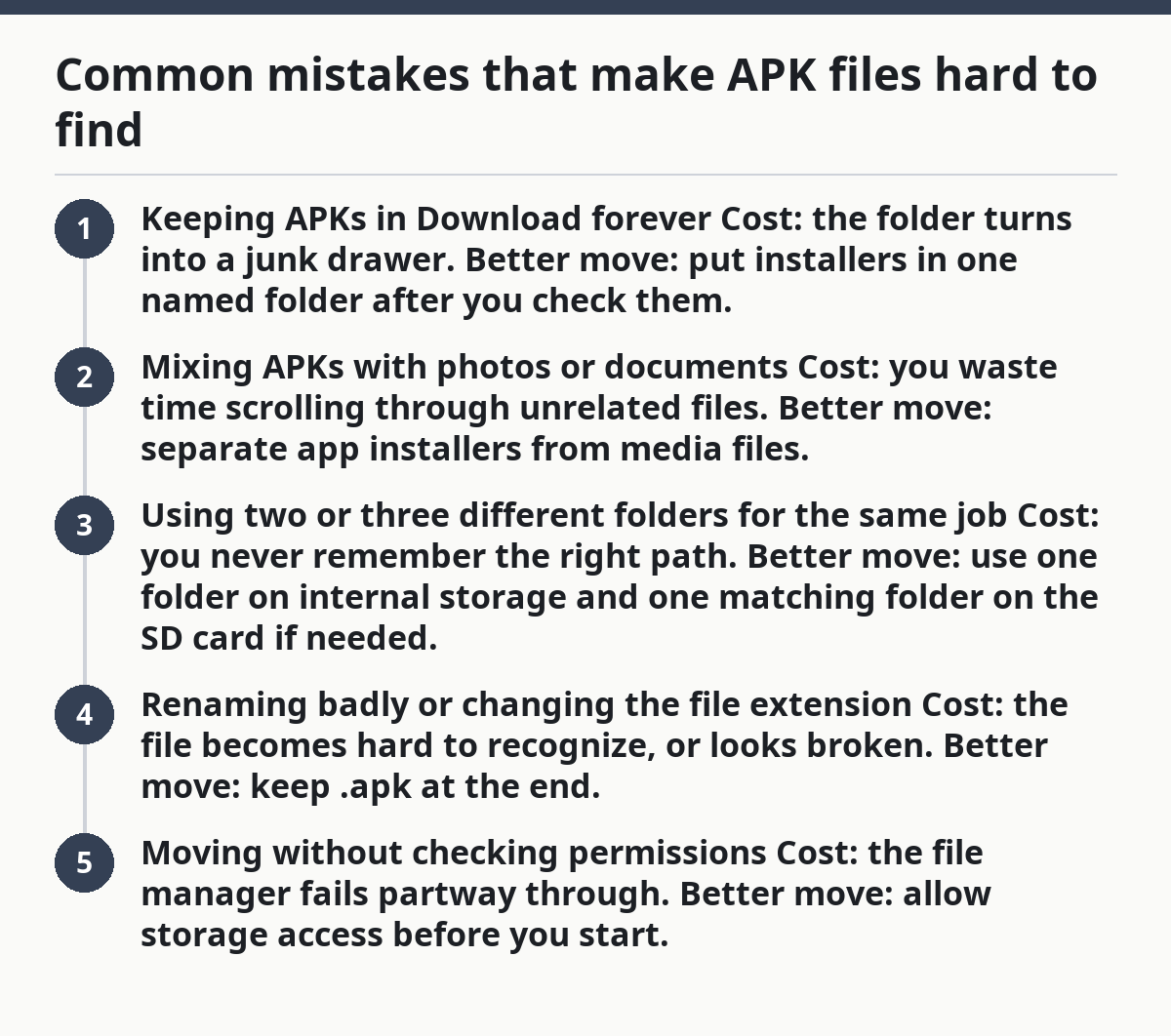
Common mistakes that make APK files hard to find
The wrong folder usually creates the same 4 problems: duplicate copies, buried paths, confusing filenames, and files split across storage types. Each one makes the next lookup slower.
Picture this: you moved the APK once, then copied it again, then forgot which version is where. That is how a simple file turns into clutter. The fix is boring, but it works.
Common mistakes and what they cost:
-
Keeping APKs in
Downloadforever
Cost: the folder turns into a junk drawer.
Better move: put installers in one named folder after you check them. -
Mixing APKs with photos or documents
Cost: you waste time scrolling through unrelated files.
Better move: separate app installers from media files. -
Using two or three different folders for the same job
Cost: you never remember the right path.
Better move: use one folder on internal storage and one matching folder on the SD card if needed. -
Renaming badly or changing the file extension
Cost: the file becomes hard to recognize, or looks broken.
Better move: keep.apkat the end. -
Moving without checking permissions
Cost: the file manager fails partway through.
Better move: allow storage access before you start.
This is one of the rare Android chores that gets easier after the first time. Once you create a clean folder path, the next APK takes less than a minute.
A simple folder setup that stays manageable
A simple setup is better than a fancy one, and 2 folders are usually enough for most people. One folder on internal storage and one on the SD card covers almost every storage pattern.
Picture this: your phone has a browser download, a backup APK, and an older installer you want to keep for later. A small structure keeps that under control without turning storage into a maze.
Use this setup:
Internal storage/APKSD card/APK
Or, if you keep all installers in one place:
Internal storage/Installers
That is enough for most Android users. You do not need date-stamped subfolders unless you keep many APKs for different apps or versions. If you do keep older versions, add a short version label in the filename instead of building a huge folder tree.
This is also where downloads cleanup fits in. After you move the APK out of Download, the downloads list gets shorter and easier to scan. You are not deleting anything here. You are just making sure the file lives in the right place for later use.
For a broader setup across phone and computer, see the hub on APK file management on Android and desktop.
FAQ
Can I store APK files on an SD card?
Yes. You can store APK files on an SD card if your file manager can write to it and the card stays in the phone. The main trade-off is reliability: removable storage can be slower or easier to lose than internal storage, so it works best for files you do not need every day.
Does moving an APK change the install process?
No. Moving an APK only changes where the file lives in storage. It does not change the file itself, and it does not change how Android reads the installer later. If the file opens correctly before the move, it should still be the same APK after the move.
What folder should I use for APK files?
Use one plain folder such as APK or Installers, ideally near the top of internal storage. That keeps the file easy to find in a file manager and avoids mixing it with photos, documents, or random downloads. If you use an SD card too, keep the same folder name there.
Drafted with AI; not yet reviewed by a person.
