

Last updated: November 19, 2026
Quick Answer: 10 minutes. You can usually check How to Check an APK Permission List Against the App’s Purpose in about 10 minutes by matching each permission to a real feature. If a flashlight APK asks for contacts, location, or microphone access, that is a mismatch you should treat as a red flag; consult a professional if you are unsure. The steps below show how to map permissions to features, spot overreach, and decide when the list makes sense.
Key Takeaways
- Match each permission to the app’s main job and flag the ones without a clear use.
- Pair permissions with real features, then mark anything that does not fit.
- Common app features often map to a small set of permissions.
- A suspicious list asks for data the app does not need for its core function.
Start with the app’s purpose, not the permission names
Picture this: you’re looking at an APK page and the permission list is full of Android permissions you don’t use every day. The right move is to ask what the app is meant to do, then check whether each request fits that job. If the app is a scanner, a camera permission may make sense; if it is a notes app, it probably does not.
The app’s purpose gives you the test. A weather app may need location permission for local forecasts. A messenger may need microphone permission for voice notes. A photo editor may need camera permission to take a new picture, or storage access to save exports. That is normal feature-to-permission mapping.
- Read the app description first.
- List the core feature in one line.
- Match each permission to a visible feature.
- Flag anything that has no obvious use.
A permission is not “bad” just because it sounds sensitive. The question is whether the feature actually needs it. A navigation app can justify location access. A simple calculator cannot. That is the whole lens for this guide, and it also fits the wider APK safety and trust approach on the hub page.
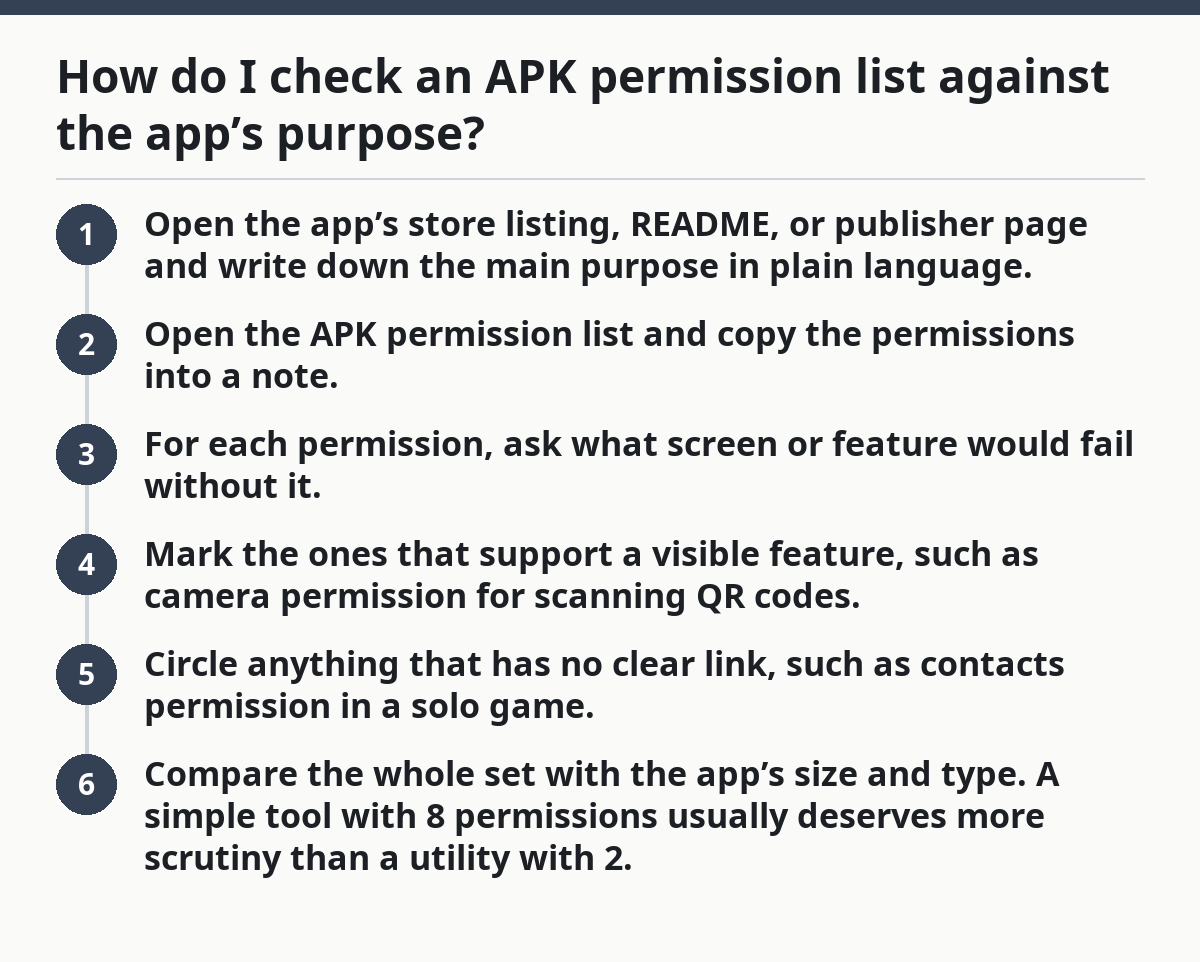
How do I check an APK permission list against the app’s purpose?
You check it by pairing each permission with a real feature and marking anything that does not have a clear job. Start with the app’s own pitch, then compare the Android permissions one by one against what the app says it does. A clean match usually has one or two obvious reasons; a messy list often has permission overreach.
- Open the app’s store listing, README, or publisher page and write down the main purpose in plain language.
- Open the APK permission list and copy the permissions into a note.
- For each permission, ask what screen or feature would fail without it.
- Mark the ones that support a visible feature, such as camera permission for scanning QR codes.
- Circle anything that has no clear link, such as contacts permission in a solo game.
- Compare the whole set with the app’s size and type. A simple tool with 8 permissions usually deserves more scrutiny than a utility with 2.
That review takes less than 10 minutes for most apps. The result is a simple yes/no list: expected, maybe, or hard to explain. A permission that supports one feature can still be too broad, but this first pass tells you where to look harder. For broader guidance, Android’s own permission docs explain how runtime permissions work, and OWASP’s Mobile Application Security Testing Guide covers permission review as part of app vetting.
Which permissions usually fit the job?
Common app features tend to line up with the same few permissions. Camera permission fits QR scanning, document capture, or video chat. Location permission fits maps, delivery tracking, ride apps, and local weather. Microphone permission fits voice search, calls, voice notes, and video recording.
Contacts permission can raise a fast question, especially when the app is not a communication tool. A calling app or messaging app may have a real reason for it, but a photo filter app usually does not. Storage access can make sense for saving files, but it should still match the app’s purpose, not just the developer’s convenience.
- Camera permission: scanning, taking photos, AR effects, video calls.
- Location permission: maps, nearby search, shipping, weather.
- Microphone permission: calls, voice input, audio recording.
- Contacts permission: messaging, calling, social sharing.
- Storage access: saving files, importing media, exporting reports.
A good check is to ask whether the permission is central or optional. A food-ordering app may work without contacts permission if you type a number manually. A note-taking app may work without microphone permission if you never use speech-to-text. If the app works fine without the permission, the request needs a clear explanation. Google’s permission guidance is useful here because it separates normal access from unnecessary access.
What are the privacy red flags in an APK permission list?
A permission list becomes suspicious when it asks for data the app does not need to perform its main job. A flashlight app asking for location permission is a classic red flag. So is a game asking for contacts permission, or a wallpaper app asking for microphone permission with no voice feature in sight.
The biggest warning sign is permission overreach: the app asks for access that is wider than its purpose. Another is bundle creep, where the app asks for many permissions at once even though it has one simple function. A simple app with camera, contacts, location, microphone, and storage access all together deserves a hard look.
- Mismatch between purpose and data access.
- Several sensitive permissions for one simple feature.
- Permissions that support no visible screen or function.
- Requests that appear before any feature explanation.
- A vague description like “for better experience” with no detail.
A second red flag is timing. If the app asks for a permission before you reach the feature that needs it, that can still be legitimate, but it should be easy to explain. A photo app might ask for camera access the first time you tap “Take Photo.” A note app asking for contacts on first launch is harder to justify. The best permission lists are boring in a practical sense: they ask only when needed, and they tie each request to a plain feature.
What should I do when a permission does not fit the app?
Because the permission does not fit the app, treat it as a question mark and look for a real feature before you install or trust the APK. If the permission supports a part of the app you can clearly point to, the request may be reasonable. If not, skip the app or look for one with a smaller permission set; consult a professional if you are unsure.
- Find the feature the permission claims to support.
- Check whether the feature is central or just a marketing add-on.
- Decide whether the permission is optional or required for the whole app.
- Compare it with a simpler alternative that asks for less.
- If the request still makes no sense, do not treat it as harmless; consult a professional if needed.
That last step matters. A permission that seems unnecessary can be a sign of poor design, ad tracking, or sloppy coding. It does not prove anything by itself, but it does mean you should slow down. If you want the broader picture, the APK safety and trust hub covers the other checks that belong around this one.
The honest trade-off is simple: some apps ask for more than you want because they bundle extra features. A full video editor may need camera, microphone, and storage access. A basic viewer does not. The more the app does, the more permissions it may need — but each one still has to earn its place.
A quick install-time review that takes under 2 minutes
You can do a useful review at install time by reading the permission prompt before you tap through it. The prompt should name the access clearly and tie it to a feature you actually need. If the permission appears out of nowhere, stop and read the request again.
Look for the part of the flow that tells you what happens next. A good install-time review asks: is this permission needed now, or only later when I use a feature? An app that waits until the feature screen is better than one that asks everything on launch. The timing tells you a lot.
- Read every permission prompt before you continue.
- Match the prompt to the app feature you came for.
- Deny anything that has no role in the app’s main job.
- Watch for repeated asks after you already said no.
- Keep the list short in your own head: expected, unclear, or wrong.
This is not about memorizing every Android permission. It is about noticing patterns. If a map app asks for location, that fits. If a calculator asks for microphone access, that does not. If the list gets bigger than the app’s purpose, the app is the problem, not your attention span. Android’s documentation on app permissions is the authoritative place to verify what each request means.
Common mistakes people make when reading APK permissions
The first mistake is assuming any sensitive permission is a dealbreaker. It isn’t. A messenger without microphone access can’t do voice notes, and a camera app without storage access may not save your photos. The mistake is judging the permission alone instead of the app’s purpose.
The second mistake is trusting a short permission list without checking fit. A small list can still be wrong if the one request is out of place. A third mistake is ignoring broad permissions because the app “looks normal.” A polished icon does not explain a contacts request in a puzzle game.
- Do not treat “fewer permissions” as automatic safety; consult a professional if a request still looks unclear.
- Do not excuse a bad match because the app is popular.
- Do not confuse optional features with core features.
- Do not skip the app description and jump straight to the list.
The practical fix is to keep the permission question tied to the feature question. Ask, “What does this feature need?” then ask, “Does the app really have that feature?” That habit catches most fake fits fast. It also stops you from overreacting to normal requests like camera permission in a scanner or location permission in a transit app.
Which APK permissions are normal?
Normal permissions are the ones that match the app’s core function. A maps app can reasonably ask for location permission. A photo app can reasonably ask for camera permission. A voice recorder can reasonably ask for microphone permission. The key is the tie to the job, not the label on the permission.
An app can still be normal and request several permissions if each one supports a clear feature. A communication app may need contacts, microphone, and storage because it handles calls, voice, and files. A one-purpose tool should not need that same spread.
How do i know if a permission is unnecessary?
A permission is unnecessary when the app’s main feature still makes sense without it and the app gives no clear reason for asking. If the request does not connect to a visible screen, a named feature, or a plain use case, it is probably extra. That does not prove harm, but it does mean the app is asking for more than it can explain. The EFF’s surveillance self-defense guidance is a useful secondary reference if you want another expert checklist.
can permissions alone prove an apk is unsafe?
No, permissions alone cannot prove an APK is unsafe. A weird permission list is a warning sign, not a verdict. Some apps need broad access for real reasons, and some risky apps ask for only a few permissions. Use the permission list as a filter, then keep checking the rest of the APK safety and trust signs before you decide.
Drafted with AI; not yet reviewed by a person.
