
Last updated: November 29, 2026
Samsung phones install APKs like other Android phones, but One UI adds extra checks, a separate “Install unknown apps” permission, and on newer devices an Auto Blocker that can stop sideloading until it is turned off. For most people, the fix is not “find a better APK app”; it is opening the right Samsung setting, then checking whether the file source, browser, or Files app is allowed to install unknown apps.
Key takeaways
- Samsung does not use one single “allow APKs” switch; permission is granted per app, such as Chrome, My Files, or a file manager.
- Newer Galaxy phones can block sideloading with Auto Blocker, even when the file looks normal.
- A failed install is often about the download source, file type, or mismatched app version, not the APK itself.
- Secure Folder and work profiles can change where an APK installs and what it can access.
- If the phone is managed by a school or company, sideloading may be blocked no matter what the user changes.
Why Samsung APK installs act differently
Samsung APK installation behaves differently because One UI adds its own security layer on top of Android’s built-in rules. The file still has to pass Android’s package installer, but Samsung may also require permission for the app that opened the file and, on many current Galaxy models, a separate Auto Blocker setting that can stop unknown app installs.
That means the same APK can act one way on a Pixel and another way on a Galaxy phone running One UI. On Samsung, the path matters: a file opened from Chrome, Samsung Internet, My Files, WhatsApp, Gmail, or a third-party file manager may trigger different prompts or no prompt at all if the source app is not trusted for installs.
The practical result is simple: if an APK will not install, the problem is often not the APK format. It is usually the source app permission, the download location, the phone’s security setting, or a mismatch between the APK and the device’s Android version or processor architecture.
Samsung’s own support pages on unknown-source installs and Android’s install-permission model explain this separation of rules; Google’s Android Help page on installing unknown apps and Samsung’s support material on Galaxy security are the most useful starting points.
Sources: Google Android Help on installing unknown apps and app permissions, and Samsung Support on Galaxy security features.
Where do Samsung phones block APKs?
Samsung phones block APKs in three main places: the source app permission, the system security settings, and the package installer itself. If any one of those rejects the file, the install stops.
The first gate is the app that handles the download. Chrome, Samsung Internet, My Files, Messages, Gmail, or another app may each need permission to install unknown apps. On Samsung, this permission is not global; it is attached to the specific app doing the installing. A browser can be allowed while a file manager is still blocked.
The second gate is Samsung’s security layer, especially Auto Blocker on newer Galaxy devices. When Auto Blocker is on, the phone can stop installations from unknown sources and other high-risk actions. This is useful for safety, but it confuses people who expect one simple “allow install” switch.
The third gate is the installer’s own check. If the APK is damaged, incomplete, signed for a different app, or built for a different CPU type, the installer can refuse it even when all permissions are open. That is why some files fail with a plain “App not installed” message instead of a security warning.
A useful mental model is this: Samsung does not ask only “is this APK allowed?” It asks “which app opened it, is that app trusted, is the phone set to block sideloading, and does the package itself fit this phone?”
How do I allow APK installs on Samsung?
To allow APK installs on Samsung, turn off the block that is stopping the file, then grant install permission to the app that opened it. On many Galaxy phones, that means changing both Auto Blocker and the per-app “Install unknown apps” setting.
The usual path is:
- Open Settings.
- Search for Install unknown apps or go to the app you used to open the APK.
- Allow that app to install unknown apps.
- If the phone has Auto Blocker, check whether it is on and blocking installs.
- Try the APK again from the same source app.
The exact menu path changes by model and One UI version, so the phone may show the setting under Security and privacy, Apps, or the app’s own info page. Samsung changes labels more often than the underlying rule, which is why many guides fail: they tell the user to “turn on unknown sources” as if that still exists as one switch for the whole phone.
The important detail is that the permission belongs to the installer source. If the APK is in Downloads and you tap it in My Files, My Files may need permission. If you open it from a browser download bar, the browser may need permission instead. On Samsung, that difference is the whole story.
What is Auto Blocker on Samsung?
Auto Blocker is Samsung’s extra security switch that can stop APK installs and other risky actions. If it is on, sideloading may fail even when Android’s own unknown-app permission is already allowed.
This is the Samsung-specific behavior that catches people most often. A user follows an old Android tutorial, enables install permission in a browser, then still sees the install blocked. The missing step is usually Auto Blocker, which is a Samsung feature, not a standard Android permission screen.
Auto Blocker is useful when the phone is shared, used for work, or exposed to a lot of downloads. It reduces the chance of one careless tap installing something unwanted. The trade-off is friction: a legitimate APK from a trusted source may still need an extra change before it can install.
Who should keep it on? Anyone who rarely sideloads and wants the phone to default to the safer choice. Who should treat it carefully? Anyone who regularly installs test builds, regional apps, or internal tools and does not want to stop every time a file is opened.
Samsung positions this feature as a security control, so the safest reading is simple: if the phone suddenly refuses APKs that used to work, Auto Blocker belongs near the top of the checklist.
Why does “App not installed” happen on Samsung?
“App not installed” on Samsung usually means the package installer rejected the file after the file had already been accepted as an APK. That message is frustrating because it hides the real cause.
The most common reason is a mismatch between the APK and the device. A 64-bit-only app, a split-package app, or an APK built for a different Android level may not install on the phone in front of it. The file can be valid and still be wrong for that device.
The second common reason is that a different version of the same app is already installed. Samsung’s installer may refuse a downgrade, a conflicting signature, or a package name clash. If the APK came from a different developer key than the installed app, the phone treats it as a different identity and blocks it.
A third reason is a bad download. If the file was interrupted, renamed incorrectly, or saved as something that is not a real APK, Samsung may still show the file but fail when it tries to unpack it.
A fourth reason is storage or profile boundaries. A work profile, Secure Folder, or nearly full storage can produce errors that look like an APK problem but are really a device-state problem. The phone is not always telling the truth in plain language, which is why the install screen should be read as a symptom, not a diagnosis.
How do Samsung settings change APK behavior?
Samsung settings change APK behavior by deciding which app may launch the installer, where the install lands, and whether the phone treats the action as risky. The same file can behave differently inside Secure Folder, a work profile, or the main user space.
Secure Folder is the clearest example. An APK installed inside Secure Folder is isolated from the rest of the phone. That can be useful for keeping personal and work apps apart, but it also means the app may not see the same files, accounts, or permissions as the main system. A reader who installs one copy outside Secure Folder and another inside it is not “duplicating” the app in a normal sense; they are creating separate app spaces.
Work profiles create another layer. If a company manages the device, the admin can restrict sideloading or block certain unknown apps entirely. In that case, the user may be able to change some Samsung settings and still fail at install time.
Samsung Internet, Chrome, and My Files also matter. Each source app can keep its own install permission. A browser download that installs fine from Chrome may fail from Samsung Internet until the browser itself is granted permission. That is one of the easiest Samsung-specific mistakes to make because the user thinks the phone has one permission, when it really has several.
Which source app should I use?
The best source app is the one that keeps the APK visible and easy to verify, and for most Samsung users that is My Files or a browser’s own download view. The choice matters because Samsung grants install permission to the source app, not to the file itself.
Here is the practical comparison:
| Criteria | My Files | Browser download view | Winner for this condition |
|---|---|---|---|
| Permission control | Often easier to find in Settings | Often tied to the browser app | My Files for users who want a visible file path |
| File checking | Lets the user see the exact file in Downloads | Good if the browser keeps the file in its own list | My Files for checking filename and size |
| Repeat installs | Easy to reopen the same APK later | Can be buried in browser history | My Files for repeated install attempts |
| Clarity on source | Clear when the file came from local storage | Clear only if the browser kept the record | My Files for troubleshooting |
| Security caution | Still risky if the source is unknown | Still risky if the site is untrusted | Tie; both need caution |
| Ease for beginners | Simple once the file is found | Simple if the browser already shows the download prompt | Browser for one-tap downloads |
| Works across Samsung tools | Strong fit with Samsung’s file manager | Depends on browser permission | My Files for Samsung-specific troubleshooting |
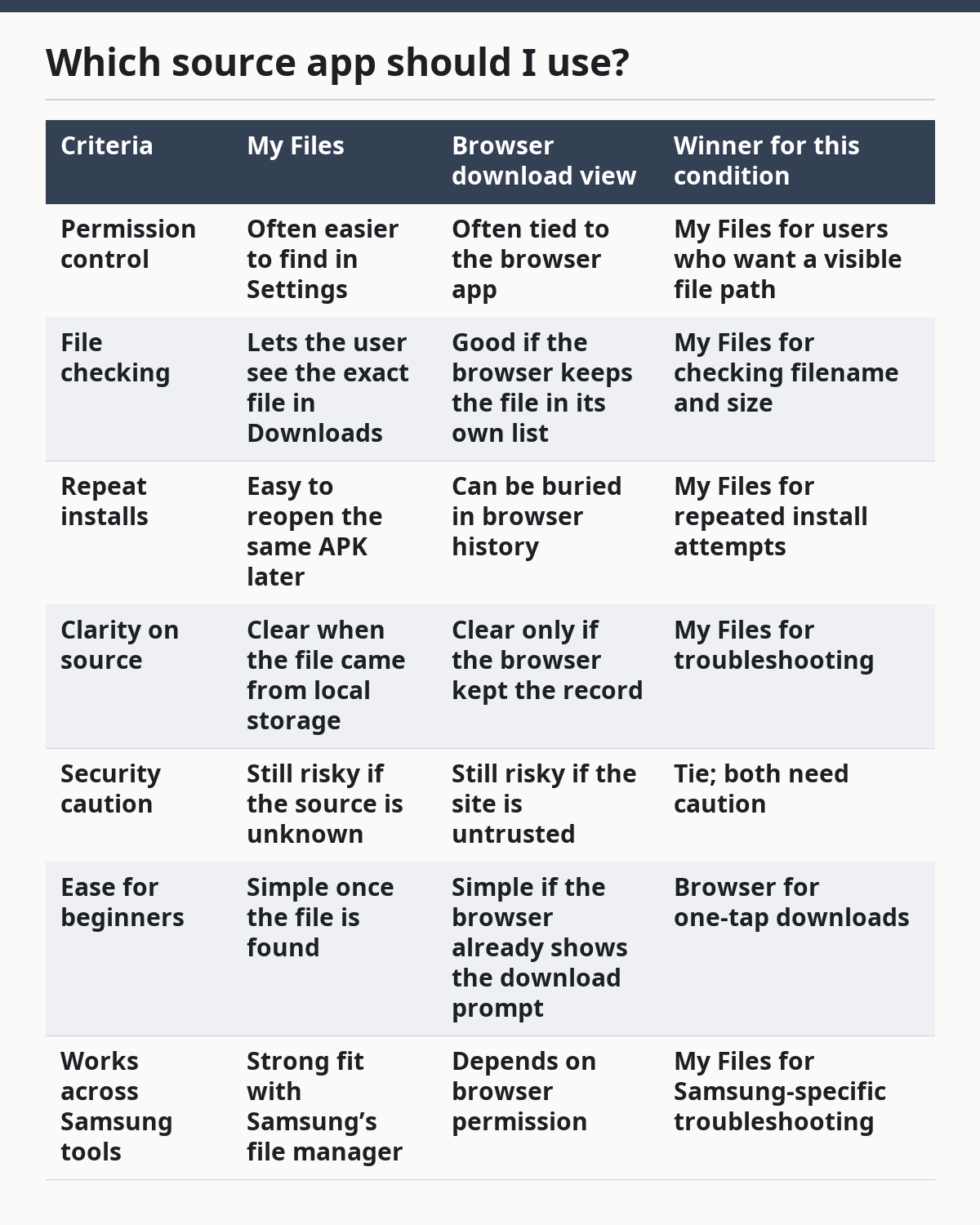
My Files wins for most troubleshooting because it makes the APK easier to inspect. The browser wins when the download is fresh and the file has not been moved around. Neither is magic; both still depend on the phone allowing the source app to install unknown apps.
The wrong choice is the one that hides the file path. If the user cannot tell where the APK came from, a failed install becomes guesswork instead of a fix.
When should I stop trying to install it?
You should stop trying to install it when the APK is meant for a different device, a different Android version, or a different signing key. At that point, repeated install attempts only waste time and can create security risk.
A few warning signs make stopping the smart move. If the file came from a site that does not clearly identify the developer, the version, and the package name, that is a bad sign. If the app is asking for broad permissions before the source is even trusted, that is another bad sign. If the APK came through a message thread, random file share, or mirror site with no clear publisher, the safer answer is to leave it alone.
The same caution applies when Samsung’s installer throws a generic error after permissions are opened. A user can change settings all day and still fail if the APK is not built for the device. In that case, the issue is not Samsung; it is file compatibility.
Security also matters more on a phone than on a desktop because the phone usually holds accounts, payment apps, photos, and message threads in one place. One bad install can create more cleanup than it saves. The right move is to stop when the source is untrusted, the app’s publisher cannot be verified, or the package keeps failing for reasons that look structural rather than permission-based.
What should I check before I try again?
You should check the source app permission, Auto Blocker, the APK filename, and the app version before trying again. That short list solves most Samsung-specific install problems without random guessing.
Start with the source app. If the APK was opened from Chrome, Samsung Internet, My Files, or another app, confirm that exact app has permission to install unknown apps. Then check whether Auto Blocker is active. If it is, that alone may explain the failure.
Next, confirm the file itself. The filename should end in .apk, and the file should be complete, not partial or renamed from another format. If the app is split into multiple files or intended as a bundle, a single APK may not be enough.
Then check for conflicts. If the app is already installed, a different signature or an older build may block the new package. If the phone is in a work profile or Secure Folder, the install may need to happen in the correct space. Samsung phones are strict about identity and location, which is good for safety but unforgiving when the wrong file lands in the wrong profile.
If the APK still fails after those checks, the problem is probably not your tapping order. It is usually a file mismatch or a device policy issue.
FAQ
Why does my Samsung phone block APK installation?
Your Samsung phone blocks APK installation because the app that opened the file may not be allowed to install unknown apps, or Auto Blocker may be on. Samsung splits the control across multiple settings, so one allowed app does not open the door for every other app.
Do I need to turn off Auto Blocker every time?
No, you do not need to turn it off every time if you are only installing one trusted APK and then leaving it alone again. It is safer to turn it off only when needed and turn it back on after the install, especially on a phone that is shared or used for work.
Why does the APK open but still fail to install?
The file can open and still fail if it is for a different Android version, a different CPU type, or a different app signature. Samsung’s installer may accept the tap but reject the package at the final check, which usually shows up as “App not installed.”
Is it safer to install APKs from Samsung Internet or Chrome?
Neither browser is automatically safe; the safety depends on the site and the file. The browser only controls the download path and the permission prompt. A trusted publisher matters more than the browser name.
Can Secure Folder change how APKs work?
Yes, Secure Folder can change where the app installs and what files or accounts it can access. An APK inside Secure Folder is isolated from the main phone space, so it may behave differently from the same app installed outside it.
Drafted with AI; not yet reviewed by a person.
