
Last updated: November 19, 2026
Quick Answer: In most cases, one of 3 sources is overriding your sideloaded APK: the app store, Android’s install permissions, or the package installer. The fix is to remove the competing source and reinstall the same package once from the source you want to keep.
A sideloaded APK keeps updating the wrong way when another installer, app store, or Android setting takes over the update path. How to Stop a Sideloaded APK from Updating the Wrong Way starts with removing every competing update source, then reinstalling the APK from the same package source you want to keep. The steps below sort out which source is winning and what to change first.
Key Takeaways
- The wrong update usually comes from a second source, not from the APK itself.
- Stop automatic updates in every place that can touch the app: the app store, the package installer, and Android’s own app controls.
- If the app was installed from an app store once, that store may keep trying to replace your sideloaded build.
- The cleanest fix is to make one source the owner and turn the rest off.
- If the app still changes, the package name or signature probably changed, which is a different problem.
What to check first before you touch anything
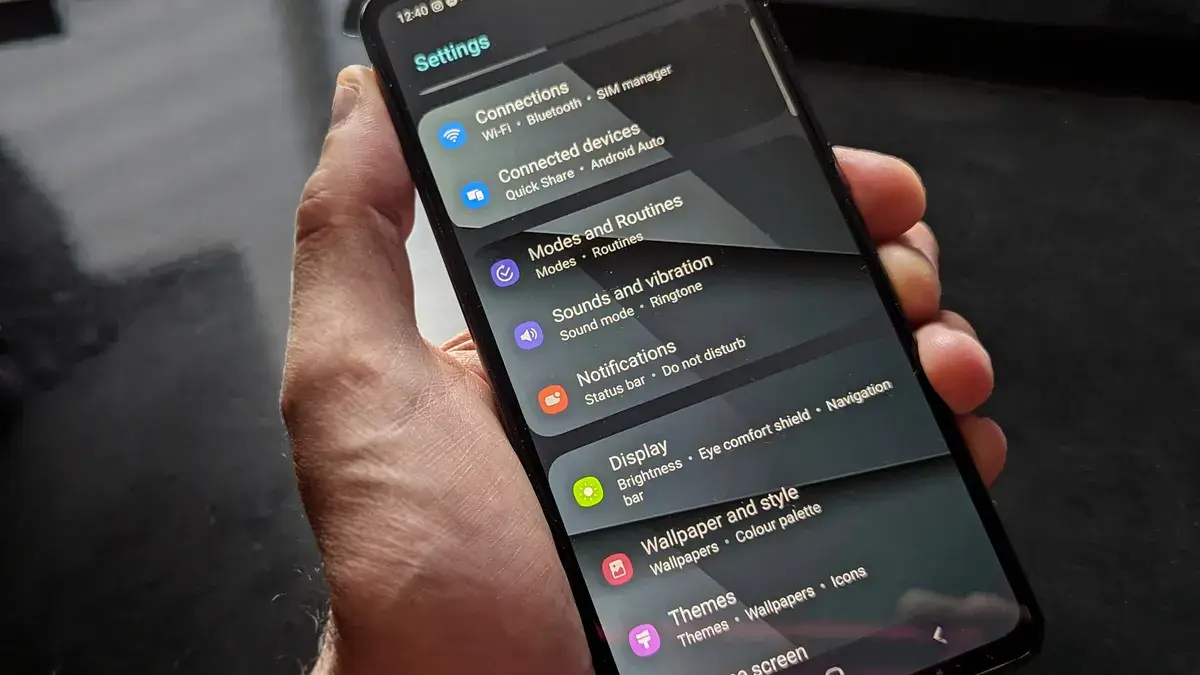
Picture this: you installed an APK by hand, but a day later the app looks different, loses a setting, or says it updated from a store you never meant to use. The fix starts with the update source, not the app screen. That means checking which place last touched the package: the app store, the system installer, or Android settings. Google Play lists device support for Android 14 and later, so the source can matter as much as the file itself.
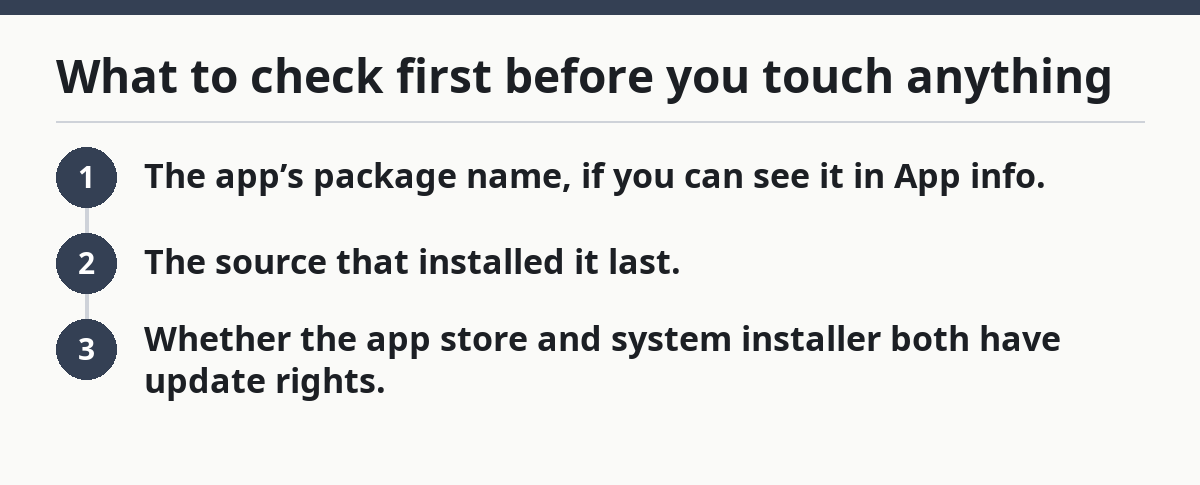
Before you change anything, find three details:
- The app’s package name, if you can see it in App info.
- The source that installed it last.
- Whether the app store and system installer both have update rights.
If you can open App info and see the app’s version, you’re in the right place. If you see an “Installed from” line, even better. If not, the app store record often gives it away.
- Open Settings > Apps > [app name] > App details.
- Open the app store that might own it, such as Google Play, Samsung Galaxy Store, or Amazon Appstore.
- Check whether the same app appears there with an update button or auto-update toggle.
If the app shows up in a store and in your APK list, that is your first clue. If it does not, the problem may be the package installer or a device-level setting instead.
How do I stop a sideloaded APK from updating the wrong way?
You stop it by cutting off every source that can replace the APK, then reinstalling the version you want from the source you intend to keep. The order matters because if you change the APK first and leave the store active, the store can replace it again within minutes or overnight.
Here’s the core procedure:
- Turn off auto-update for that app in the app store. Open Google Play, Samsung Galaxy Store, Amazon Appstore, or any other store on the device, find the app, and switch off automatic updates for that title if the store offers it. When it works, the app no longer shows as queued for an update.
- Remove the app from the store’s control path. If the app was once installed through the store, uninstall it there only if that is the only practical way to break the store link, then reinstall the APK you want. When it works, the store stops claiming ownership of the package.
- Check Android’s app settings for updates or permissions. Open Settings, then Apps, then the app, and look for install, unknown app, or package installer permissions. When it works, the installer can no longer silently approve changes.
- Confirm the package installer you want is the one being used. If the APK came from Files, Downloads, or a browser, make sure that exact path is still allowed to install unknown apps. When it works, you know which installer is in charge.
- Reinstall the intended APK once, from the right source. Use the version you trust and let it finish cleanly. When it works, the app opens with the expected version number and no store update prompt appears right away.
One bad link is enough. If the app store still sees the app as its own, it may push a newer build over your sideloaded one the next time the device checks in.
Which app store settings usually cause the problem?
Picture this: the APK is fine, but the store that once installed the app still thinks it owns it. That store can push updates even if you never opened it after the first install. This happens most often with Google Play, but Samsung and Amazon stores can do it too. Google Play reaches billions of devices, so it is the most common place to check first.
The fix is to find the app inside each store and turn off its update path there. The setting may be called auto-update, update over Wi‑Fi only, or keep apps up to date. If the store has a per-app switch, use that first.
Look for these signs:
- The app appears in the store’s library even though you sideloaded a newer APK.
- The store shows an update waiting for the same app name.
- The app changes version after the store syncs, not after you install anything.
Use this order:
- Open the app store.
- Search for the app.
- Open the app’s page or menu.
- Turn off automatic updates for that app.
- If there is no per-app control, turn off store-wide auto-update and use manual updates only.
If that does not work, the app may still be tied to the store account or to a device OEM store in the background.
How Android settings and the package installer can override your APK
Picture this: you already turned off the store, but the app still mutates after a reboot or a device sync. The next place to check is Android settings and the package installer, because the device itself may be helping the wrong source. Android’s “Install unknown apps” control is the gatekeeper on modern devices.
On many phones, the app you used to install the APK gets a standing permission to install unknown apps. That permission matters. If a browser, file manager, or store can keep sending install requests, Android may accept the wrong one.
Do this:
- Open Settings > Apps > Special app access > Install unknown apps.
- Review every app listed there: browser, file manager, messaging app, cloud drive, store app.
- Turn off install permission for anything that should not touch APK installs.
- Leave permission only on the app you actually use to sideload.
Then check the package installer itself:
- Open Settings > Apps > Show system apps if needed.
- Find Package Installer or the OEM’s installer app.
- Clear its defaults only if it has chosen the wrong handler.
- Make sure it opens the APK prompt for the source you expect.
If the package installer is working correctly, you should see the normal install prompt with the app name, version, and install button. If the wrong source still wins, the installer is probably only the messenger; the real problem is the store or another app with install rights.
What to do when the app still changes after you fix the settings
Picture this: you shut off the obvious switches, but the app still changes version or behavior. That usually means the package was replaced by a different signer, a different build type, or a second app with the same label. Labels are messy. Package names are not.
Check these three things:
- Package name — If the app name is the same but the package name changed, Android treats it as a different app. If you are not sure how to verify it, consult a qualified Android technician or the app developer’s support notes before making changes.
- Signature — If the APK signature changed, the device may reject a direct update or replace it in a separate path.
- Split APK behavior — Some installers handle split packages differently from a single APK file.
This is where many guides go wrong. They tell you to disable updates once and call it done. That misses cases where the store installed a separate build channel, such as a beta track or vendor package, and your sideloaded APK is now fighting that channel.
If you see a version jump after reinstalling the same file, compare the source:
- Same store?
- Same installer?
- Same package name?
- Same signing key?
If one answer changes, you are not fixing an update problem anymore. You are managing two different app sources that happen to share a name.
Common mistakes that make the wrong update come back
Picture this: you fix the app today, and tomorrow it updates again. That usually means one of four mistakes stayed in place. The most common one is leaving the app store account signed in on the device while assuming the sideload broke the link.
Here are the traps:
- Only disabling one store when the phone has two. Some Android devices ship with Google Play and an OEM store.
- Leaving auto-update on for the app itself inside the store’s app page.
- Reinstalling from a browser that still has install permission, then forgetting that browser can act as the installer later.
- Mixing build channels, such as a stable APK and a beta store listing.
What each mistake costs:
- A store can replace your APK overnight.
- The app can lose local data if the replacement is built differently.
- You can chase the wrong fix because the app icon stays the same.
Use this instead:
- Pick one source of truth.
- Remove install rights from the rest.
- Reinstall once from the source you want to keep.
- Check the app’s version after every major device update.
That last part matters. A major Android update can reset app permissions or restore default behaviors on some devices.
What a clean fix looks like when it finally works
Picture this: you open the app a day later, and nothing has changed. The version number is the same, the store is quiet, and no update prompt has taken over the app. That is the sign that the right source now owns the APK.
A clean fix has three visible signs:
- The app store no longer shows an update for that package.
- The APK opens with the same version you installed.
- Android does not ask another installer to approve a replacement.
If you want a broader playbook for keeping sideloaded apps under control, the hub on APK update strategies for sideloaded Android apps is the right next step. This page handles the wrong-way problem; that hub covers the bigger update plan.
Once the device has one owner for the app, the problem usually stays solved until another store, reinstall, or device reset gets in the way again.
Why did my apk change without me installing anything?
Your APK usually changed because another source replaced it, not because the file changed on its own. An app store, OEM store, or package installer can push a newer build if it still has control over the package. Check the store’s app page first, then Android’s install permissions, then the package installer.
How do I block an app store from updating a sideloaded app?
You block it by turning off auto-update for that app inside the store, then removing the store’s install path if needed. Open the app’s page in Google Play, Samsung Galaxy Store, or another store on the phone and disable automatic updates. If the store still owns the app, reinstall the APK after cutting that link.
Can I disable automatic updates for one apk?
Yes, if your store and device expose per-app update controls. Some stores let you turn off auto-update for one title while leaving the rest alone. If that option is missing, you may have to disable store-wide auto-update and manage the APK manually from that point on.
Drafted with AI; not yet reviewed by a person.
