

Last updated: November 19, 2026
Key Takeaways
- Quick answer: Most Android users can find a downloaded APK in under 3 steps: check Downloads, search the file manager for
.apk, then open the browser’s download history if needed. - APK files often land in Downloads, but Android and browser settings can put them elsewhere.
- You can search for APK files on Android by using your file manager’s search box and typing
.apk, then narrowing the results by folder or date. - Browser downloads may show an APK even when the Downloads folder looks empty.
Missing an APK on Android? Start with Downloads, then search your file manager for .apk, and check the browser’s own downloads list if the file still isn’t there. The steps below show where downloaded APK files often appear and how to catch duplicates too.
Find APK files already downloaded on Android
Picture this: you downloaded an APK, the install screen is gone, and now you need the file again for sharing, backup, or a second install. Begin with the Downloads folder; then try a file manager search, and only after that check the browser’s download history if the file came from Chrome or another browser.
- Open your Android file manager or the built-in Files app. You should land on a list of folders like Downloads, Images, and Documents.
- Tap Downloads. If the APK is there, you’ll usually see a file ending in .apk by name or in the file type line.
- Don’t see it? Tap the search icon and type
.apkor the app name. A search can surface matching APK files on that storage location. - Sort by Date or Recent if the app allows it. The newest download should rise to the top, which is useful when you grabbed the same app twice.
- Open your browser downloads next. Chrome, Samsung Internet, Firefox, and similar browsers keep their own download list even after you leave the page.
- If the browser shows the APK, tap the file name or the folder icon next to it. That should jump you to the saved file or show its path.
- Check Recent files in your file manager. This often catches APKs you opened yesterday but forgot to keep. If the file appears there, Android has seen it recently, even if you are not sure where you put it.
Most people lose APK files because they stop at one folder. One folder is rarely enough. Thin ice, really.
Where downloaded APK files usually go
APK files often go to Downloads, but they can also land in a browser-specific folder or appear under Recent instead of the original path. The browser, the device, and the storage location you chose all affect where it ends up.
Picture this: you downloaded an APK in Chrome on a Friday, then switched to a file manager on Sunday and found nothing in the first folder you checked. That does not mean the file vanished. Usually, the app saved it somewhere else, or you’re looking at internal storage while the file sits on an SD card.
Start with the most common spots:
- Internal storage > Download
- Files > Downloads
- Browser > Downloads
- Recent files
- Any folder you picked manually during the download prompt
If you use a browser, open its download page first. Chrome usually keeps a visible download history, and many browsers let you tap the file again even after the notification is gone. Handy when the main list comes up empty.
Here’s the catch: some Android devices separate internal storage and an SD card. If the file manager opens one by default, the APK may still be sitting in the other. Switch storage sources before assuming the file is missing.
A few versions of Android also group files by category instead of showing full folder paths right away. Look for the actual filename, not just the category label, because the category view can hide where the file lives.
How do I search for APK files on Android?
You search for APK files on Android by using your file manager’s search box and typing .apk, then narrowing the results by folder or date. That is the most direct way to find downloaded APK files that still exist on the device.
Picture this: you know the file name is close to “chatapp” but you cannot remember the exact title. Search can still find it if you use the extension, partial name, or both. That matters because many APKs get renamed by the browser, the site, or the device itself.
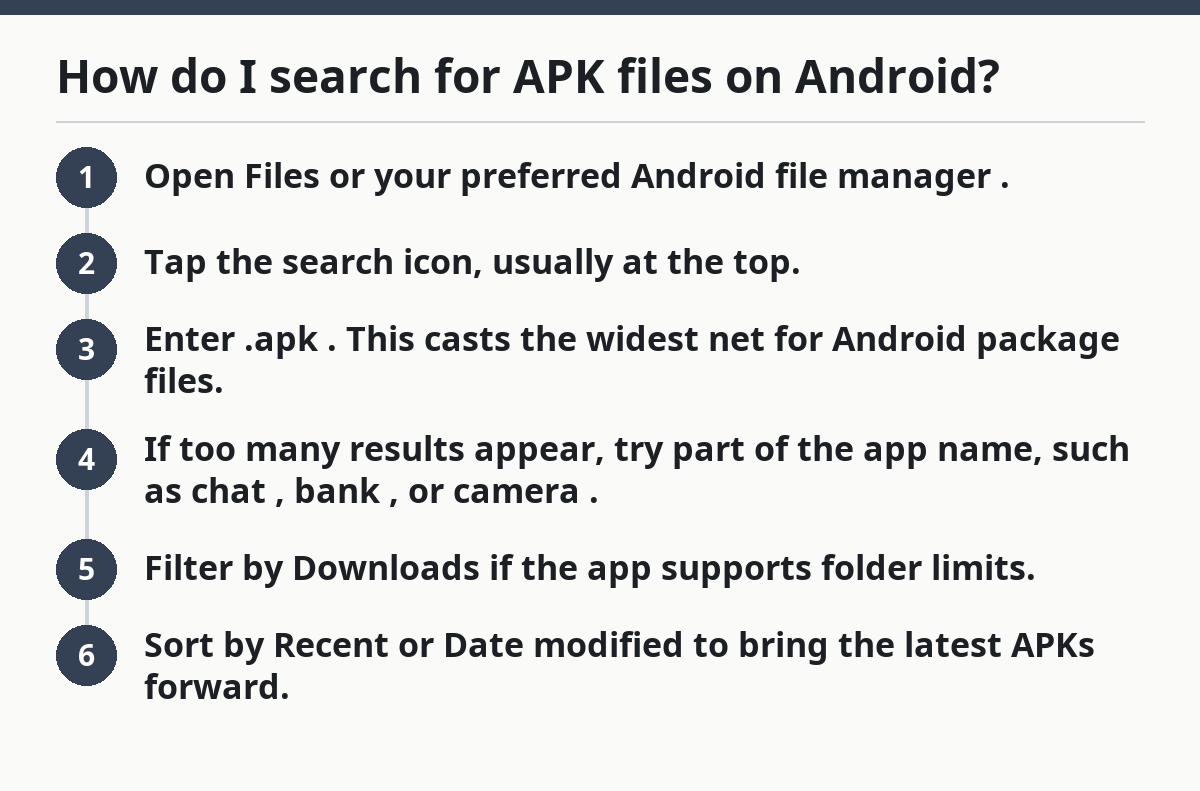
Use this order:
- Open Files or your preferred Android file manager.
- Tap the search icon, usually at the top.
- Enter
.apk. This casts the widest net for Android package files. - If too many results appear, try part of the app name, such as chat, bank, or camera.
- Filter by Downloads if the app supports folder limits.
- Sort by Recent or Date modified to bring the latest APKs forward.
You should see file names ending in .apk, often with a generic document or package icon. If the results list is empty, the file may have been deleted, moved to another storage area, or saved under a different extension by mistake.
A small mistake causes a big miss: searching only for the app name. Some APKs use random names, long version strings, or a publisher label that does not match the app title. The extension search is safer.
On the flip side, do not search only inside one app’s folder unless you already know the path. APK files are often scattered across Downloads, browser folders, and moved backup folders.
Check browser downloads before you assume the file is gone
Browser downloads often show the APK even when the Downloads folder looks empty. Chrome and similar browsers keep a download history that can point you straight back to the file or the site that saved it.
Picture this: you tapped an APK link in Chrome, saw the download notification once, and never touched it again. Later, the notification is gone, but the browser still remembers the file. That is the easiest place to recover the trail.
Try this:
- Open the browser you used, such as Chrome or Samsung Internet.
- Open the menu and look for Downloads.
- Find the APK in the list.
- Tap it to open, show, or reveal the file.
- If the browser gives you a path, use that path in your file manager search.
This works best when the download came from a web page rather than a messaging app or a cloud service. A browser download list often shows the date, file name, and source page. That makes it easier to spot the right APK if you grabbed three versions in one afternoon.
The catch is that browser history is not a full backup. If you cleared browsing data, changed phones, or downloaded the file in a private tab, the entry may be gone. Still, it is worth checking before you start digging through folders.
If you use more than one browser, check each one. A file downloaded in Firefox may not appear in Chrome’s list, and a file downloaded in Samsung Internet may sit outside the folder you expect.
Find duplicate APK files without guessing
Duplicate APK files show up when you download the same app more than once, save it from two sources, or copy it into another folder for backup. The easiest way to spot them is by sorting by date and comparing file names, sizes, and folder paths.
Picture this: you have three APK files that look almost the same. One ends in a version number, one has “(1)” in the name, and one sits in a backup folder you forgot about. That is common. It just means the same app was saved more than once.
Use these checks:
- Sort files by Name to group near-identical APKs together.
- Sort by Size if your file manager allows it. Two files with the same name but different sizes may be different versions.
- Open the file details to see the storage path. Same filename, different folder, often means a duplicate copy.
- Compare the date modified field. The newest one is usually the most recent download.
- Look for filename suffixes like (1), copy, or version tags.
This matters because Android does not always warn you when you save the same APK twice. The result is clutter, confusion, and the wrong file getting shared later.
A built-in file manager with date and name sorting is usually enough to expose obvious repeats.
Do not delete anything blindly if you need a backup. A duplicate is only safe to remove once you know which copy is current and which folder you actually want to keep.
What to do if the APK still does not show up
If the APK still does not show up, the file was probably moved, renamed, deleted, or saved to another storage location. Your next move is to search the whole device, then check the app that handled the download.
Picture this: you have checked Downloads, your browser list, and Recent files, but the APK is still missing. That usually means the file is not in the place you expected. It does not automatically mean the download failed.
Work through this list:
- Search for
.apkacross all storage, not just one folder. - Switch between internal storage and SD card, if your phone has both.
- Look in the download app or file picker you used at the time.
- Check whether the file was renamed to something without .apk at the end.
- Search for the app name plus a common suffix like update or install.
A file without the .apk extension may not show up in a simple extension search, even if it is still the same package file. That is why name searches matter as much as extension searches.
If the file was opened from a notification and then moved by another app, recent-files lists may show it even when the Downloads folder does not. That clue can save time when the path has changed.
The practical limit is simple: Android can only show you files that still exist somewhere on the device. If the file was deleted or never finished downloading, there is nothing to find.
For a broader cleanup and storage workflow, see the hub on APK file management on Android and desktop.
Keep APK files easy to find next time
You keep APK files easy to find by saving them in one folder, using clear file names, and checking the browser download list right after the download finishes. Ten seconds now can spare you a ten-minute hunt later.
Picture this: you download the same installer twice in a week. The second time, you forget where the first one landed. A simple folder habit fixes that. Put all APK files in one place if your phone lets you choose the save location.
Use these habits:
- Save every APK to the same folder, such as Downloads/Apps.
- Rename files with the app name and version if your file manager allows it.
- Check the browser’s Downloads page before closing the tab.
- Leave the file in one place until you install or back it up.
- Use Recent files only as a shortcut, not as your only record.
This is useful if you keep APKs for offline installs, test devices, or reinstalling after a reset. A tidy folder beats a long search every time.
Honestly, the trade-off is obvious: APK files are easy to lose if apps scatter them across storage. One folder is easier to manage than a phone full of random downloads.
FAQ
Where do APK files go after download?
APK files usually go to the Downloads folder on Android. Some browsers store them in their own download history first, and some devices let you save them to another folder if you choose a path during download. Check both the file manager and the browser downloads list.
How do I search for APK files on Android?
Search for .apk in your file manager, then narrow the results by folder or date. If that does not work, search part of the app name and check browser downloads too. A file manager search is faster than opening folder after folder by hand.
Can I move downloaded APKs to another folder?
Yes, you can move downloaded APKs to another folder with a file manager. Open the file, use Move or Cut, then pick the new folder and confirm. That helps if you want one place for backups, but make sure the original file still exists before you move it.
Drafted with AI; not yet reviewed by a person.
