
Last updated: November 18, 2026
Quick Answer: You can transfer an APK from a Windows PC to an Android phone in 4 steps: connect by USB, switch to file transfer, copy the .apk, and confirm it in the phone’s file manager. That is the simplest way to handle How to Transfer an APK from Your PC to Android Without a Cloud Drive when internet storage is off the table.
Key Takeaways
- A charge-only cable powers the phone but will not expose storage, so the copy stops at step 1.
- Connect with a data-capable USB cable, then copy the APK from File Explorer into the phone’s storage.
- Use the
Downloadfolder by default, unless another folder is easier for you to find later. - The most common issue is a charging-only cable, which keeps Windows from opening the phone’s storage.
A Windows PC, an Android phone, and one decent USB cable are enough. No cloud drive required. You can move the APK straight into a Downloads folder, or into another spot you can find later without hunting around. The task is straightforward; the folder choice is where people usually trip.
What you need before you move the APK
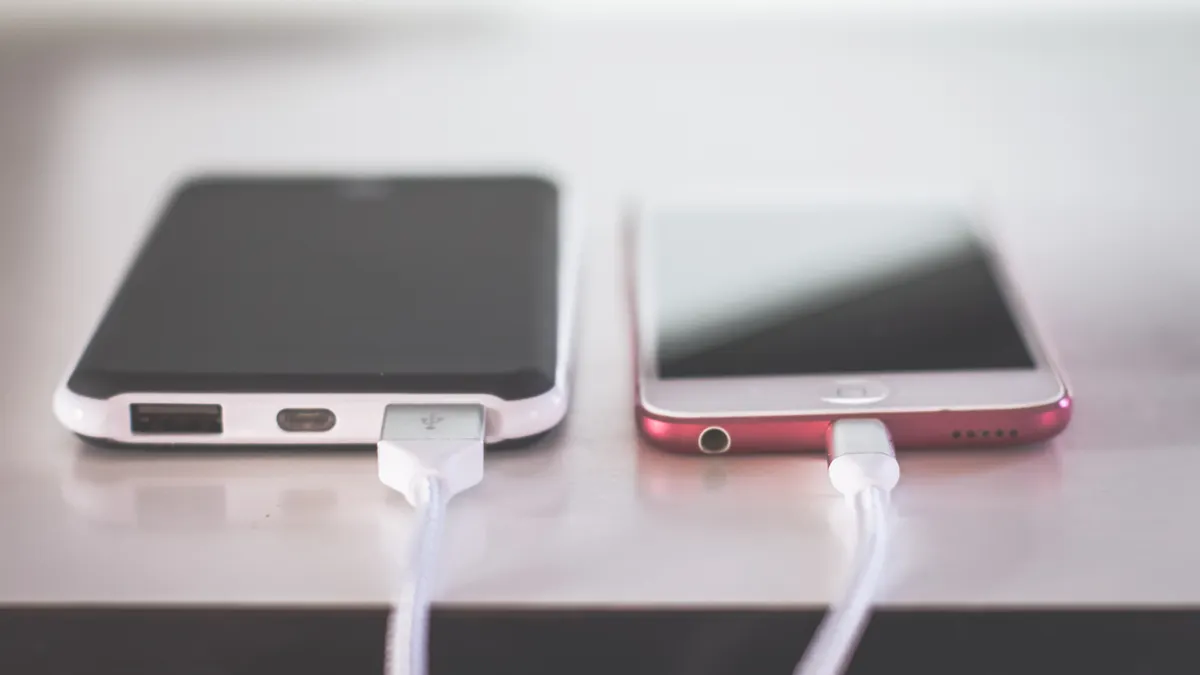
Three items are enough: the APK file on your Windows PC, a USB cable that carries data, and a file manager on the Android phone. A charge-only cable will power the phone but not expose storage. The transfer will stall at step 1.
Check the extension first. The file should end in .apk, not .zip or .exe. Is it still packed inside a compressed folder on the PC? Extract it before copying, or you may end up sending the wrong thing and wondering why the phone treats it like an archive.
The Download folder is usually the easiest place to put the file, but it is not the only valid choice. It sits in a familiar spot in most built-in file managers and keeps the APK away from photos, documents, and app data. If the phone has an SD card and you prefer that route, you can copy it there too. That only helps when the card is mounted and readable in the phone’s file manager.
How to transfer an APK from your PC to Android with a USB cable
Connect the phone to the PC with a data-capable USB cable, then copy the APK from File Explorer into the phone’s storage. Pick a path you can find again later — Download works well, and so does a dedicated folder named for the app or installer.
-
Connect the Android phone to the Windows PC with a USB cable.
Use the cable that came with the phone if possible, because many USB-C cables are power-only. Usually, the phone shows a USB notice within a few seconds. -
Open the phone and choose a file-transfer USB mode if prompted.
On many Android phones, the USB notification lets you switch from charging only to file transfer or MTP. When that happens, Windows can browse the phone’s storage instead of treating it like a charger; if it does not, check the cable and consult the phone maker or a qualified technician. For reference, Android’s file transfer behavior is documented by Google support, and Microsoft explains that MTP devices appear in File Explorer when the connection is set up correctly.
Sources: Google Android Help, Microsoft Support -
Open File Explorer on the PC and find the APK.
You should see the file in its folder on the computer, often inDownloadsor a software folder. If it is still tucked inside a.zip, extract it first so the file you copy is the actual APK. -
Open the phone storage from File Explorer.
In Windows, the device usually appears under “This PC” with the phone model name or a generic portable device label. Open it, then open the internal storage area. When it works, familiar folders such asDownload,DCIM, andMusicshow up. -
Copy the APK into the phone’s
Downloadfolder, or create a folder for APK files.
Drag the APK intoDownload, or make a folder such asAPKat the top level of internal storage. The copy should take only a moment for a single file, and the file should appear in the target folder on the phone’s storage. -
Safely eject the phone from Windows before unplugging the cable.
Use the USB eject option in File Explorer or the system tray if it is available. That lowers the risk of a half-finished copy, especially if the file is a few hundred megabytes. -
Open the phone’s file manager and confirm the APK is in the folder you chose.
The file manager should show the APK underDownload,Internal storage, or the folder you created. This is where the transfer ends; installation is a separate step covered elsewhere on the site.
This works well for most people because it does not depend on internet speed, an account, or a cloud sync app. To be fair, it is a poor fit if the phone’s USB port is loose, the cable is flaky, or Windows cannot see Android storage because of a driver problem.
Where should I copy an APK on Android?
Copy the APK to the Download folder unless you have a reason to keep it somewhere else. That folder is the easiest place to find in most Android file managers, and it is the default destination many people already check for downloaded files. A custom folder such as APK works too, as long as you remember the path.
The exact storage path can vary by phone and Android version. Some file managers show it as Internal storage > Download; others show a root path like /storage/emulated/0/Download. On a phone with an SD card, the card may appear separately, usually as a second storage location with its own top-level folders.
Do not bury the file in deep app folders unless you have a special reason. Five or six nested folders turn a simple copy into a scavenger hunt, and that defeats the point of this transfer. If you are moving several APKs, a single folder named APK or Installers keeps things organized.
What goes wrong during PC-to-Android APK transfer
The most common problem is a cable that charges but does not transfer data, which leaves Windows unable to open the phone’s storage. The fix is plain: use a known data cable or another USB port and open the phone before reconnecting.
Another common mistake is copying the wrong file type. If the APK is still inside a compressed archive, the phone gets the archive, not the installable package. That wastes time because you will have to go back to the PC, extract the archive, and copy the real .apk file.
A third problem is sending the file to a place you cannot find later. Scatter APKs across Download, Documents, and random app folders, and the phone’s file manager turns into a search job instead of a quick check. The better move is to use one storage path consistently, then open it from the file manager the same way each time.
SD cards can also confuse the process. Some phones show them clearly in the file manager, while others hide them behind a second storage label or require the card to be mounted first. If the card is not visible in the phone’s file manager, stop dragging the file around on the PC; copy it to internal storage instead.
Is a file manager enough to check the APK after copying?
A file manager is enough to confirm that the APK arrived on the phone, but it does not install the app by itself. After the copy, open the phone’s file manager, browse to Download or the folder you created, and look for the .apk filename. If you see the file there, the transfer succeeded.
This matters because it keeps transfer and installation separate. If the file is missing, the problem is still on the copy side: the cable, the path, the USB mode, or the file type. If the file is present, the transfer is done and you can move on to the separate installation guide on the APK side-loading and installation files hub.
One practical check is the file extension. A real APK should end in .apk. If the phone only shows the name without the extension, open the file details in the file manager; that often reveals whether you copied an APK, an archive, or something else. Keeping the APK in a visible folder also makes it easier to delete later after installation.
When an SD card makes sense instead of internal storage
An SD card makes sense if you want the APK stored outside the phone’s internal memory or if the phone’s Download folder is hard to browse. In that case, copy the file to the SD card from the PC, then open the card in the phone’s file manager and confirm the file is there.
This can help on older Android phones or budget models with small internal storage, but it is not automatically better. Some phones switch SD cards to read-only behavior, and some file managers display the card less clearly than internal storage. A path that looks simple on the PC can feel hidden on the phone if the card is mounted under a different storage label.
If the goal is only to move one APK, internal storage is usually simpler. If the goal is to keep a set of installers for later use, an SD card folder can be a decent archive. The trade-off is accessibility: internal storage is easier to find, while SD card storage is easier to misplace.
What this transfer method is good for, and what it is not for
This method is best for someone who already has the APK on a Windows PC and just needs it on an Android phone without using a cloud drive. It also works well when internet access is slow, missing, or not worth using for a single file. A direct USB transfer is usually the shortest route from desktop to phone.
It is not the right answer if the real issue is installation. Copying the APK does not install it, and it does not bypass Android’s app checks. It also is not ideal if you want to move many files across several phones at once, because a cloud sync tool or a shared drive may be easier for bulk work.
The clean rule is simple: use USB and a file manager when you need one APK on one Android phone fast, with no cloud account involved. Use a different workflow when you need syncing, remote access, or repeated distribution. For the installation part, follow the linked guide on APK side-loading and installation files rather than trying to guess the next step.
Where should I copy an APK on Android?
Copy it to Download if you want the easiest path back to it later. That folder is visible in most Android file managers and is usually the first place to check. A custom folder at the top level of internal storage also works, especially if you keep multiple APKs together and want to avoid clutter.
Can I install an APK after copying it from PC?
Yes, copying the APK is enough to make it available on the phone, but installation is a separate step. The file still has to be opened from the phone’s file manager or another installer flow. This page covers transfer only, so the installation part belongs in the next guide.
Do I need internet to transfer an APK?
No, you do not need internet to transfer an APK by USB cable. The file moves directly from the Windows PC to the Android phone through the cable, and the phone’s file manager can confirm the copy offline. Internet only matters if you plan to download the APK first or use a cloud service instead.
Drafted with AI; not yet reviewed by a person.
