Last updated: September 10, 2026
Key Takeaways
- ARM64 is common on recent phones; ARMv7 shows up on older 32-bit devices.
- Pick the wrong one, and Android may throw a parsing error or refuse the install.
- Check the version code or release name if it appears.
- A mismatch usually ends with “app not installed” or a parse failure.
Table of Contents

- Who this is for — and who should do something else
- Can you actually install an older APK on Android?
- How do you download the right older APK safely?
- Step by step: download and install an older APK
- Where do people go wrong with APK downgrades?
- When should you stop and use a different approach?
- What changes in edge cases?
- How do I tell if the install worked?
- Common questions about older app APKs
Quick answer: the safest path for an older app APK is to line up the exact version, package name, signature, and device architecture before you install anything. On Android 14, the package installer still blocks obvious mismatches. The wrong file usually dies quickly.
Need an older version of an Android app? Download the matching APK, confirm it is the version you want, then install it manually through Android’s package installer. This guide on how download an older version an app as an apk is for Android users who know the app name and version they want, and who can live with the trade-off that APKs outside the Play Store are easier to misuse and harder to trust than an in-store update.
Who this is for — and who should do something else
This is for someone who already knows the app they need, the Android device they will use, and why the current build is a problem. The usual reasons are practical: an old feature vanished, a newer release crashes on a specific phone model, or an interface change broke a workflow. Honestly, I would only use this route when the older build still works with the phone’s Android release and the app does not depend on a server-side change that only works with the newest build.
Not for iPhone or iPad users. iOS does not install APK files. It is also not for people who just want “an earlier app” without checking the version number. On Android, an APK is the app package file itself. Install the wrong one, and you may hit a downgrade block, a signature mismatch, or an app that opens and immediately fails. Google’s own install guidance and APKMirror’s version listings both depend on exact package and version matching.
A useful working assumption: you already have a browser on the Android device or a computer, you can tell an app name from a version number, and you can open Android settings if needed. If the app handles money, passwords, medical data, or company accounts, I would be more cautious than usual. Older can be harmless. Or not. It can also miss security fixes, and that trade-off matters more than convenience. The U.S. Cybersecurity and Infrastructure Security Agency keeps warning that outdated software remains a common entry point for abuse.
Can you actually install an older APK on Android?

Yes — if the APK is signed by the same developer key as the version already on the device and the version code is lower than what is installed now. Android uses the version code, not the marketing name. “5.2.1” can have a higher version code than “6.0,” or the reverse; the numeric label alone is not enough.
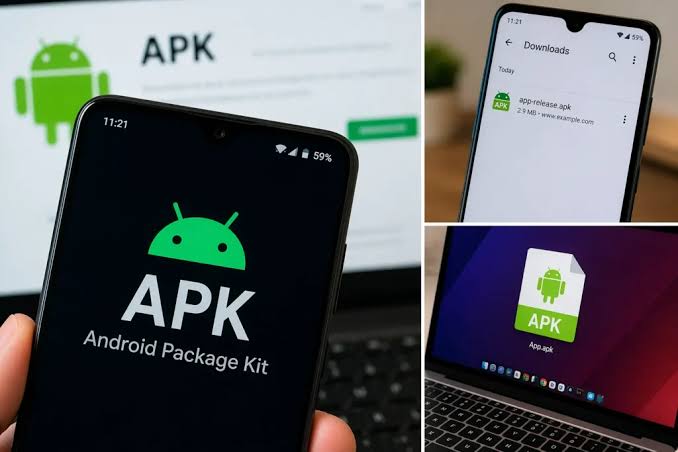
Usually, the snag comes from one of three places. First, the app may have moved from an older 32-bit build to a newer 64-bit-only build, and your device may not match. Second, the app may refuse to run on a much older Android release, such as Android 8 or Android 9, if the app now targets a newer API level. Third, an APK from an untrusted source may be tampered with. APK stands for Android Package Kit, and it is just a container; the file can be legitimate or malicious.
The honest trade-off versus the Play Store is straightforward: the store is easier and safer for ordinary updates, while APK sideloading gives you version control. “Sideloading” means installing an app from outside the store. I’d choose it when version control matters more than convenience, and I would avoid it for apps that auto-update for security reasons unless I had a clear reason to freeze them.
Small but important: if the app is already installed from the Play Store, an older APK usually will not install as a downgrade unless you remove the newer release first. That can mean losing app data unless the app has its own backup or cloud sync. For some apps, a version jump also changes the data schema, so the old build may not understand the newer data even if the install succeeds.
How do you download the right older APK safely?
Find the exact version, confirm the file matches your phone’s architecture, and only then install it. The architecture matters because many APK archives separate builds for ARM64, ARMv7, x86, and “universal” packages. ARM64 is common on recent phones; ARMv7 shows up on older 32-bit devices. Choose the wrong one, and Android may show a parsing error or refuse the install. Android’s package installer documentation and APKMirror’s device filters both reflect those version and architecture checks.
Step by step: download and install an older APK
Follow these steps in order. If any step fails, stop. Don’t keep tapping through errors.
- Check the app’s current version on your phone. Open Settings > Apps > the app name, then look for the version number. Check the version code or release name if it is shown. If you cannot find it, the problem is usually not the app itself but the device settings screen or a work profile hiding the app.
- Find the exact older version you want. Use the app’s official release notes, the developer’s site, or a reputable APK archive that lists version names and upload dates. Match the version string exactly, such as 4.18.7 rather than “around 4.18.” If the archive does not show the version name, package name, and file hash, that is a warning sign.
- Match the package name and signature if the app is already installed. The package name is the internal identifier, usually something like com.example.app. Check that the APK belongs to the same developer family as the app on your phone. If the signature is different, Android will usually reject the install; if you are unsure, consult a professional or the app’s support documentation before proceeding.
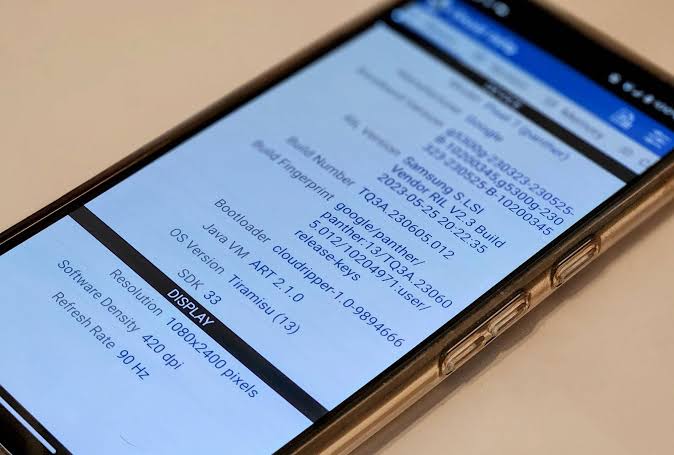
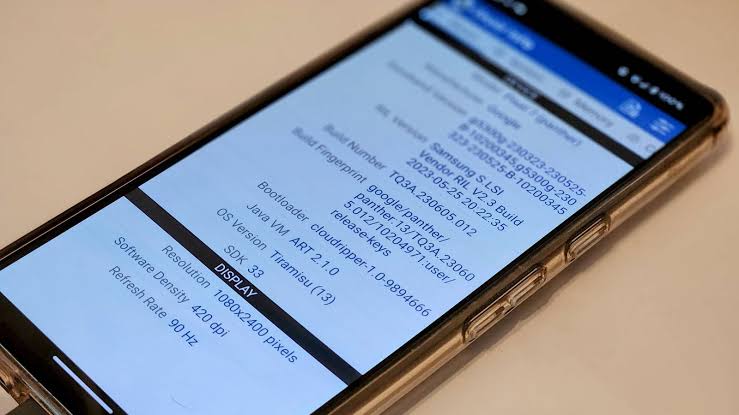
- Check your phone’s Android version and CPU architecture. Look at Settings > About phone for the Android release, then confirm whether the APK is ARM64, ARMv7, x86, or universal. Verify that the APK’s minimum Android requirement is not higher than your device’s current release. A mismatch here usually shows up as “app not installed” or a parse failure.
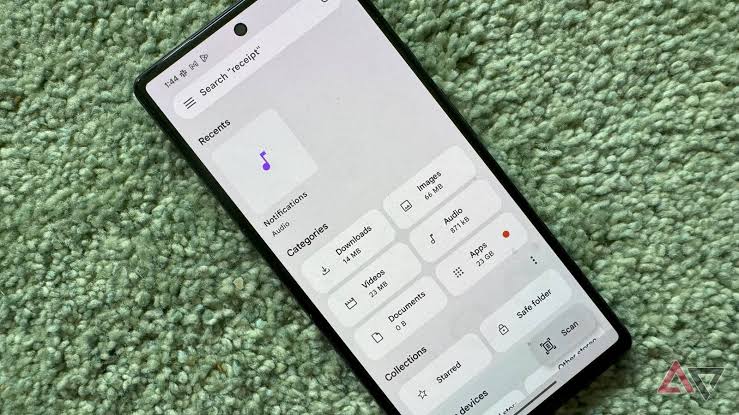
- Download the APK file to local storage. Keep it in Downloads or another visible folder. Check that the file ends in .apk and that the size is not suspiciously tiny for the app. If the site offers an .apkm, .xapk, or split package instead, do not treat it as a plain APK. If you are not sure how to handle that format, consult a professional or use the installer the source recommends.
- Scan the file before installing. Use Android’s built-in Play Protect if available, or check the file with a reputable scanner on a separate device. Check that the file name, package name, and version line up. If the scanner flags the file, do not assume it is a false alarm unless you can trace the file back to a known source.
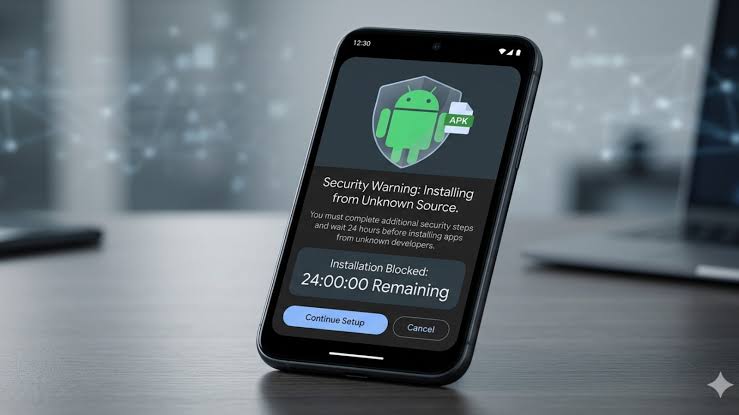
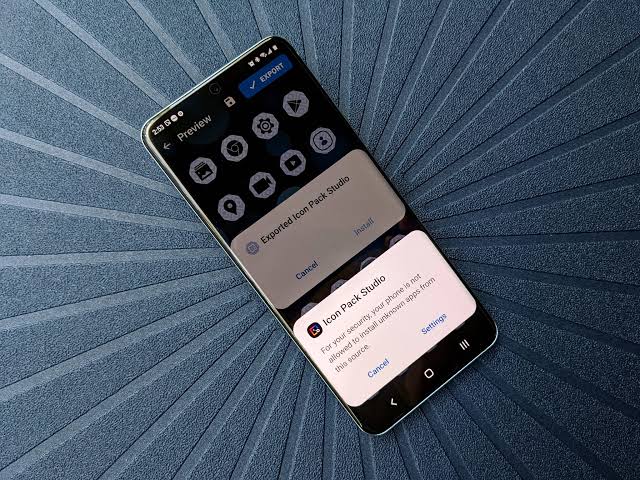
- Allow app installs from the browser or file manager you used. On recent Android versions, permission is granted per app, such as Chrome or Files, not globally. Verify that the install prompt appears after you tap the APK. If Android sends you back to settings without the install prompt, the “install unknown apps” permission is still blocked.
- Install the APK and confirm the version afterwards. Tap Install, wait for the package installer, then reopen the app’s info screen and check the version number again. Verify that the old build launches and shows the behavior you need. If it crashes on launch or asks to update immediately, the version is either incompatible or depends on a server-side rule you cannot bypass.
A good result is boring: the app opens, the version number matches, and the feature you wanted is still there. A bad result is a forced update loop, a crash on the splash screen, or missing data after a downgrade. Back it up first if the app stores critical data locally. Android backup support varies by app, and many apps do not preserve their data cleanly across downgrades. The Android Backup and Restore docs note that app behavior differs by developer implementation.
Where do people go wrong with APK downgrades?
Five mistakes show up again and again, and each one has a cost.
-
They grab the wrong version name. The consequence is either a failed install or the wrong feature set. The better move is to match the full version string and, when possible, the version code.
-
They ignore architecture. The consequence is an install error or a crash on launch. The better move is to match ARM64, ARMv7, x86, or universal to the device.
-
They install a split package as if it were one APK. The consequence is a file that will not open normally. The better move is to use the correct installer for .apkm or .xapk files, or avoid them if you want the simplest path.
-
They downgrade over a newer build without thinking about app data. The consequence is possible data loss or corrupted local files. The better move is to back up first and, for apps with synced accounts, confirm that cloud data is intact before removing anything.
-
They trust the first download result they find. The consequence is exposure to repackaged or ad-heavy files. The better move is to stick to a source that lists package name, version history, and file details, and to avoid files that have been altered to bundle extra permissions.
-
They expect an older build to fix every problem. The consequence is wasted time when the real issue is account sync, a server change, or device compatibility. The better move is to ask whether the problem is in the app, the account, or the backend before you chase the APK.
The most common failure is not technical; it is impatience. Skip version, architecture, and package identity checks, and you are downloading guesses, not a usable older app. Android’s own package checks are strict enough that a bad match usually fails quickly.
When should you stop and use a different approach?
Stop if any of these situations apply, because the APK method is the wrong tool.
The app handles banking, authentication, or passwords: older builds may miss security fixes or refuse to work with current server rules — keep the app current and look for a supported setting instead.
The developer has changed the package name or moved to a different signing key: the old APK will not update or restore cleanly — use the current release path, not a downgrade.
The app depends on server-side features that changed in the last 30 days: the old client may install but fail to log in, sync, or stream content — the APK itself is not the whole system.
Your data is only stored locally and you have no backup: uninstalling the current app may erase records, drafts, or saved settings — back up first or do not proceed.
The APK source does not show version, package name, or file format: you cannot verify what you are installing — stop and choose a source with enough detail to identify the file.
The device is managed by work policy or a school profile: the install may be blocked or violate policy — use the approved software route instead.
For ordinary consumer apps, that is where I would stop. The convenience of an old version is not worth forcing a broken install path or gambling with data you cannot replace.
What changes in edge cases?
Older APKs need a modified approach in a few common edge cases.
When the app is already installed, you may need to remove the newer release first. That is the normal route for a downgrade, but it can wipe local data. If the app supports export or cloud sync, use that before uninstalling. If it does not, I would be cautious about downgrading at all.
If the app ships as a split package, plain APK sideloading is not enough. Split packages divide resources across multiple files. In that case, the “older version” may come as an .apkm or .xapk bundle, and you need the matching installer. If you expected a single .apk and got a bundle, that is a clue you are not looking at a simple file.
For a very old device, you may need an older build that still targets an earlier Android API level. API level is Android’s compatibility number; apps can target a minimum or preferred platform level. A recent app may simply not support Android 7 or Android 8 anymore.
If the app was distributed through a beta or alpha channel, the release you want may not sit in the public version history. Beta builds can be removed or replaced quickly. In that case, look for an official archive from the developer, not a random mirror.
For an enterprise app, the signed package and deployment method may be controlled by MDM, short for mobile device management. MDM policy can block sideloading even when Android itself would allow it.
How do I tell if the install worked?
It worked if the app opens, the installed version matches the one you chose, and the exact feature you needed is present without a forced update prompt. That is a better check than simply seeing the app icon on the home screen.
Look for three signs. First, the app’s info page should show the expected version. Second, the login flow should complete without error if the app uses an account. Third, the old interface or feature should behave the way you remember. If any of those fail, the install may be technically successful but functionally wrong.
I would not count “the APK installed” as success if the app immediately asks you to update. That usually means the server no longer accepts the old client, and no amount of reinstalling the same file will fix it. A successful downgrade is one that keeps the app usable, not one that merely places an icon on the device.
Common questions about older app APKs
Can I downgrade any Android app with an APK?
No. The app has to be compatible with your device, signed in a way Android accepts, and still allowed by the app’s servers.
Will I lose my data if I uninstall the newer version first?
Possibly. Local data can disappear unless the app supports backup, sync, or export.
Is it safe to use an APK archive?
It can be, but only if the file details are clear and the source is trustworthy enough to identify version, package name, and architecture.
Why does Android say “app not installed”?
The usual causes are a signature mismatch, wrong architecture, a lower version code, or insufficient storage.